

Watch the movie
I’m here for the articles, let me read!
I would hope the changeLog speaks for itself, but sometimes folks need an extra prod. Here is that poke!
26.2.0 July 2026
New Features
Connection color coding for worksheets and notebooks
DBA user account management and auditing
DBA role management and assignment workflows
DBA licensing prompts
Scheduler jobs management and monitoring
Automatic Workload Repository (AWR) reports
Active Session History (ASH) reports
Filter object types in the navigator
Here’s what that looks like in practice –
Color Coded Connections

Let’s see what happens when we do this.
- we propagate the color into
- file editor tabs (.sql files, sql notebooks)
- extension editor tabs (the HTML screens – open a table, or open a SQL Monitoring report)
- connection tree
- connection pickers

You’ll also see a connection color horizontal line at the top of each web content editor, like so –
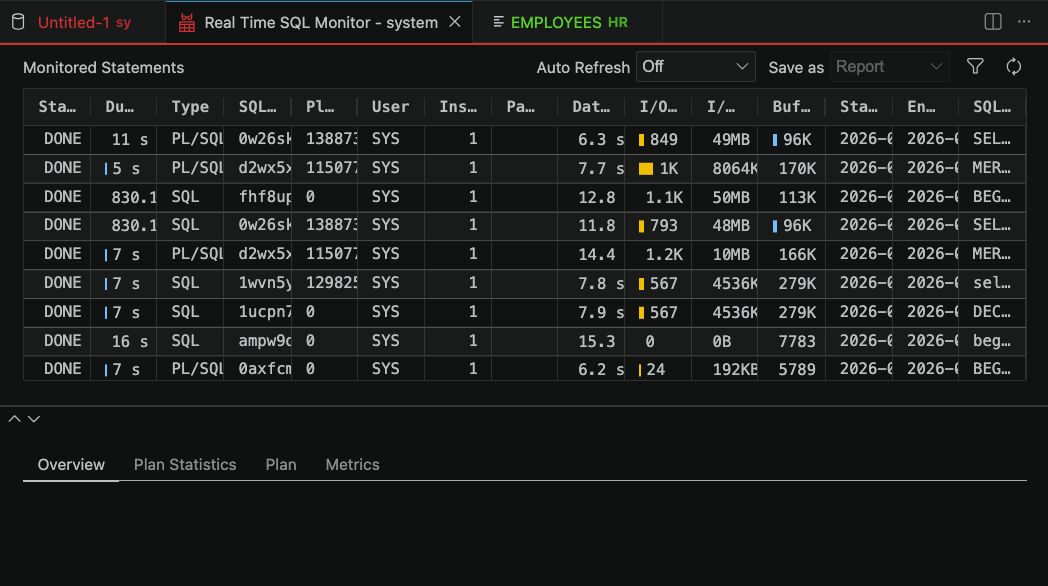
DBA Connections
SQL Developer ‘classic’ had two Connection trees. The secondary panel was ‘DBA’ and you had to add connections to it to do ‘dba stuff.’ For the new and improved VS Code extension, we’re not doing that.
Instead, you can mark in your connection properties that you’d like to see the DBA features.

Enabling this, gives you more in the Connections tree, specifically –

- a DBA connection tree node
- Scheduler Jobs
- Security
- Users
- Roles
- Performance
- ASH
- AWR
Once you toggle a connection as ‘DBA’ we also add a little tool indicator on the connection icon to show you it’s a DBA connection. These connections do not ‘require’ you have the DBA role – we do not do any database validation
If you mark a regular connection as ‘DBA’ and the user doesn’t have privileges, you’ll get errors if you try to access those screens.
Cloud Connections (OCI Database Tools)
Hopefully you know what in the Oracle Cloud, you can use our database tools directly in the console. I’ve talked about it a lot here, that’s for sure.
If you’ve created the OCI Database Tools Connection objects, you can now import those and use them directly in SQL Developer!
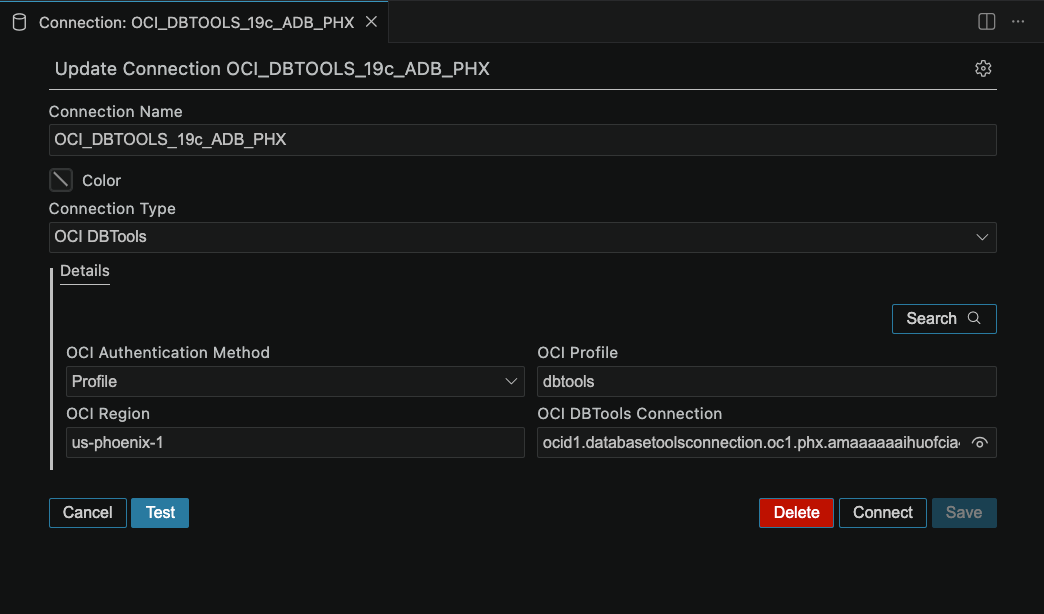
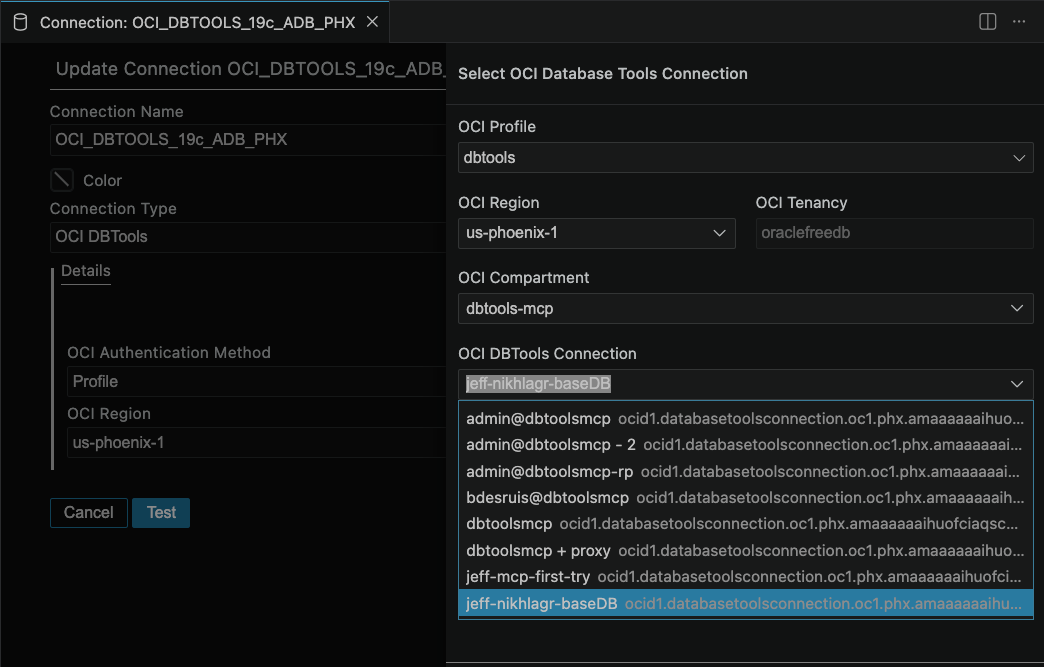
Simply set your Connection type to ‘OCI DBTools’ – then use the dialog to navigate your region/compartment to find your connection.
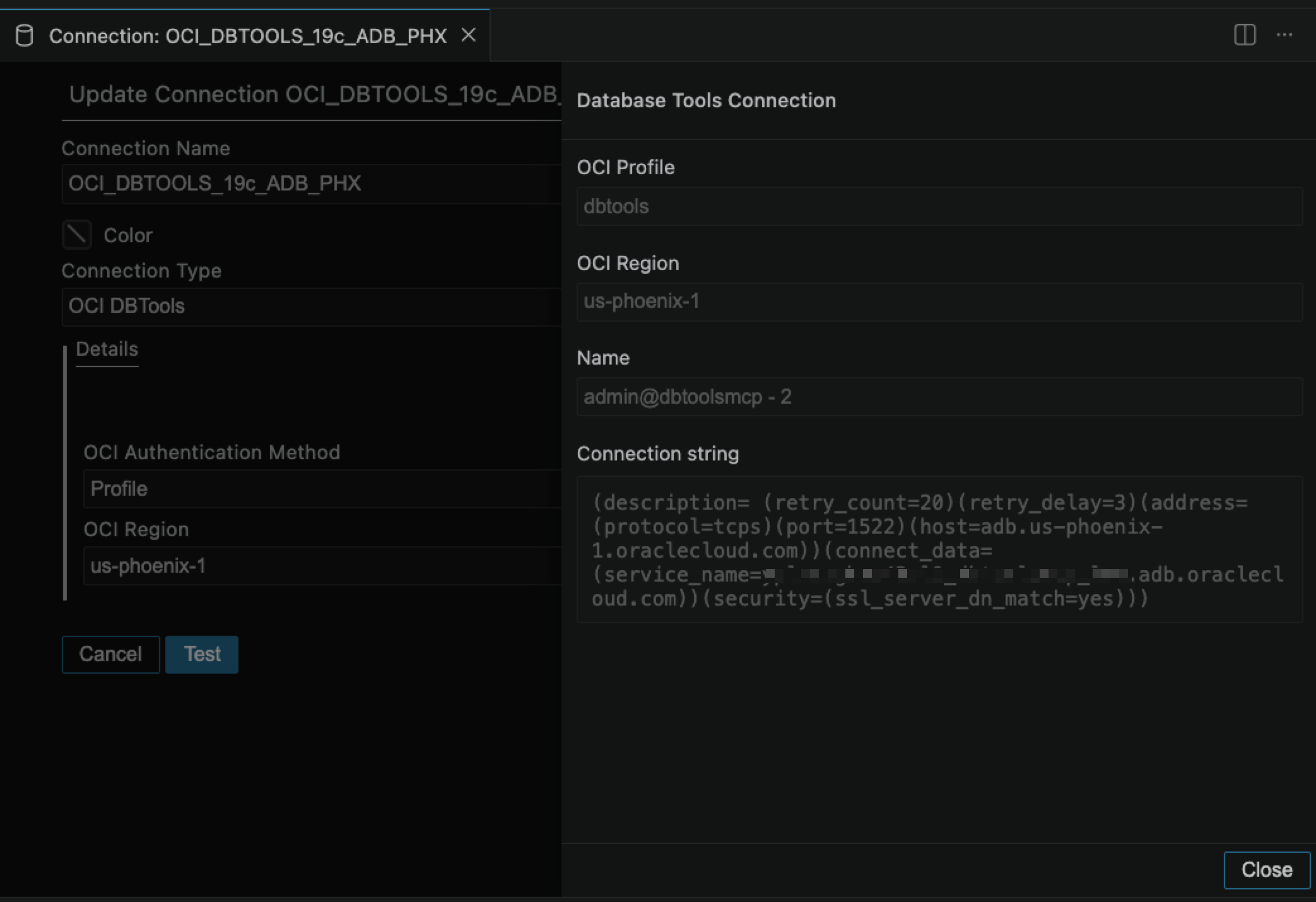
You can also quickly view the connection object resource details by using the 👁️ button in the connection editor.
One more thing about connections, hiding stuff in the tree.
Not everyone is using … materialized views? I just picked an object type at random. But let’s imagine you ONLY wanted to see TABLES and VIEWS in the connection trees.

Yes, I can mark a connection as ‘DBA’ and then HIDE the DBA item in the tree. Not sure WHY I would do that, but yes, you can do that.
I’m going to end this blog post here, but there’s obviously MUCH more to talk about, so look for upcoming posts on the scheduler and DBA items we’ve added.
Also I remember all the people telling me they couldn’t start using the VS Code extension until we added the connection coloring support, so here’s your cue to upgrade!


8 Comments
We would like to have the menu for create Oracle Rest Data Services Modules interactively, we use that a lot in SQL developer classic. and it would go a long step helping our users migrate to VS Code Exension
We would also like you to have that. That’s why we’re working on it right now 🙂
Jeff,
A couple of questions:
1. Why has “Scheduler” been moved to a DBA panel? In classic SQL DEV it was available to add jobs/programs/chains just as part of the regular tree for developers (not DBA’s) to set them up?
2. When will support for Scheduler Programs/Chains be available in the extension?
Thanks a lot,
Bren
1. A mistake, it will get relocated back where it belongs, although there is a place for SCHEDULER items under DBA, just not the the actual jobs. BTW it’s still possible you don’t need the DBA role to get access to this screen/feature.
2. When enough people ask for them. There’s a ton of features to be migrated, so community feedback is critical here. You’re basically the first to even acknowledge they’ve been added, and to follow-up about programs and chains. If you have a post on the forums, others can favorite/respond to show more publicly the demand.
Is it planned to implement a package export, or “Cart” function, as in the old sql developer? It is very helpful to save time.
Most likely GUI support for this will go to Projects.
Is there a way to filter connections in the connections pane ? eg based on keyword ?
I would use folder organization to do that, and it supports multiple levels of subfolders.