

These are the driving questions for today’s post.
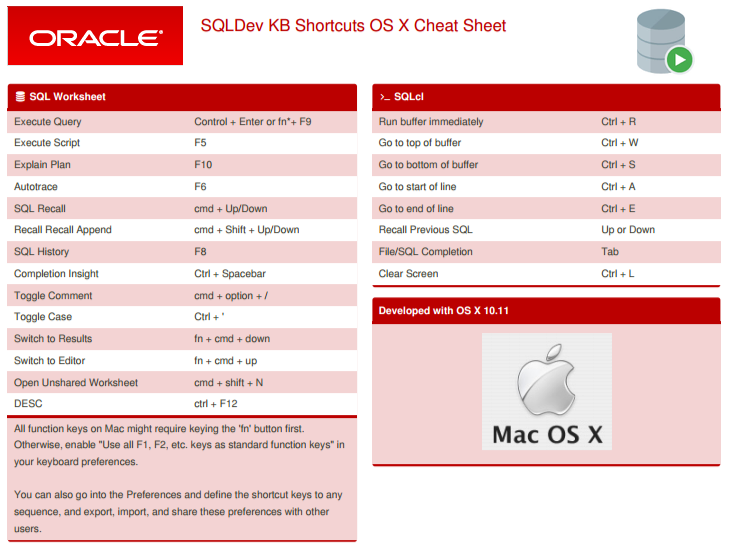
While some of us may be keyboard ninjas, and others are more driven to use the mouse – everyone has probably picked up a few strategic keyboard shortcuts over the years. For example, I’ve personally JUST memorized the Cmd-Shift-4 ‘trick’ in Mac OS X. And of course we all know what F1 does, right? Right?!?
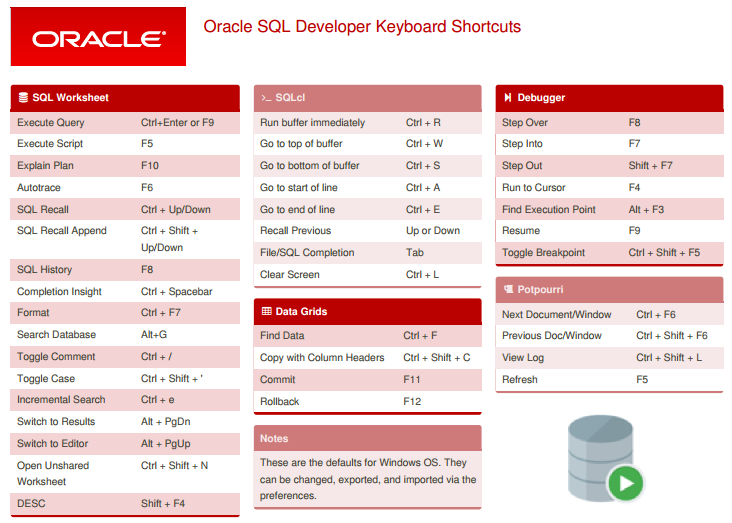
Here are a few more keyboard shortcuts to commit to memory.
My Favorite SQL Developer Shortcuts
- ctrl-enter : executes the current statement(s)
- F5 : executes the current code as a script (think SQL*Plus)
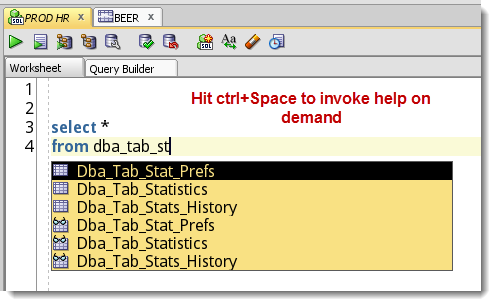
- ctrl-space : invokes code insight on demand
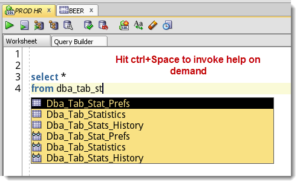
Code Editor – Completion Insight – Enable Completion Auto-Popup (Keyword being Auto) - ctrl-Up/Dn : replaces worksheet with previous/next SQL from SQL History
- ctrl-shift+Up/Dn : same as above but appends instead of replaces
- shift+F4 : opens a Describe window for current object at cursor
- ctrl+F7 : format SQL
- ctrl+/ : toggles line commenting
- ctrl+e : incremental search
And New for Version 4.0…
- Alt+PageDown: Will take focus from worksheet edit area to results pane. Alt+PageUp takes you back up in the opposite direction
Configuring Keyboard Shortcuts in SQL Developer
Tools > Preferences > Shortcut Keys
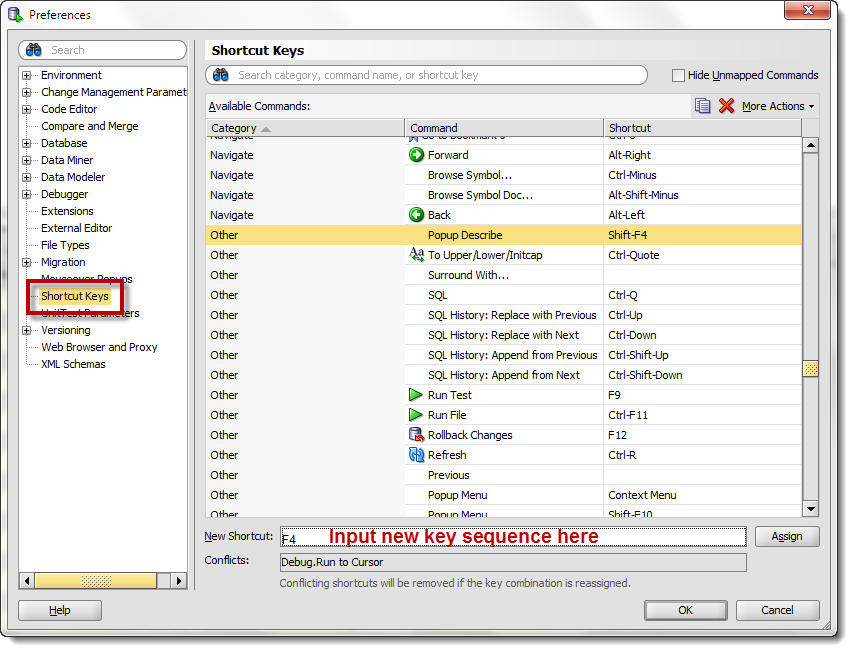
Some tips…
- Sort by category
- Pay special attention to the ‘Code Editor’ and ‘Other’ categories
- Mind the conflicts when you change the defaults
- Be nice – share! You can save your new mappings with your co-workers using the Export and Import buttons
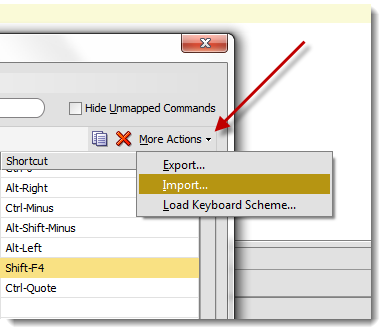
When I get ‘bored’ or if I think I might be missing something, I peruse the Code Editor and Other categories, again! I’ve picked up quite a few cool editor tricks here. Then I blog about them, like they’re ‘magic.’ #EvilLaugh
But the main tip is this – don’t let your previously memorized keyboard shortcuts SHORTCUT your usage of SQL Developer. If your fingers have already memorized some keystrokes, just re-program SQL Developer to match!
What’s your favorite shortcut?
I’ll use the most popular shortcut mentioned in the comments to round out my Top 10 list above!


142 Comments
Thanks a lot!
Jeff, as I’ve made the transition from SQL Server to Oracle, your blogs have been very helpful. Yes, I am someone that is used to never having to touch the mouse, but in SQL Developer, I’m still not quite there. One thing that MOST tabbed windows do is use ctrl+tab to cycle through tabs. Yes, SQL Developer sort of does this; it’s assigned to “Next File” in Preferences / Shorcut Keys. The way that works (I’m sure you know) is that one press does nothing, then another brings up a small dialog where you can cycle through open tabs and when you release ctrl, it shifts focus to that tab. This is frustrating, especially when every other Windows app I use works the “standard” way. So… I tried exporting the shortcut keys to XML, changed the file so that ctrl+tab/ctrl+shift+tab are now Next PANE and Previous PANE (which is the functionality I’m looking for), and imported the XML back in. In the Shortcuts assignment dialog, I can see that my reassignment is there, but functionally, ctrl+tab/ctrl+shift+tab have retained the Next/Previous FILE behavior. Is this hard-coded in SQL Developer? Can I not change this functionality? It’s a bit of a mind-twist to have to do something differently in SQL Developer than I do in every other tab-based app I use in Windows. Thanks! (version 19.2.1.247, and NO control over which version I use).
I have set Left Tab and Right Tab hot keys (not pane, but Tab)
As you have no control over the version of your sqldev, I have no control over the underlying IDE features – that’s coming from JDeveloper. And I’ve asked for them to switch to the standard ctrl+tab, but you may want to get used to using your mouse or custom KB keystrokes for SQLDev.
Found an extended list of shortcuts for SQL Developer here:
https://shortcutworld.com/Oracle-SQL-Developer/win/Oracle-SQL-Developer_4_Shortcuts
-> Example: ctrl+r = refresh query results.
Is there any setting for F5 , It does execute the SQL , but the results are messy/wrapped do not appear in a single line.
Thanks in advance
A few dozen if not a hundred settings, actually.
Hi Jeff
Do you know a shortcut – or how to assign shortcuts – to the “query result/Explain Plan” accordion collapse/expand actions? (the actions you activate using the small black up/down arrows in the split line between Worksheet and Query results tabs.)
Unfortunately there isn’t a kb shortcut available for that.
Thanks to any and all who share their expertise.
Question on adding functionality to shortcut. When I press ctrl-enter the current command is executed. as expected. However the cursor remains in its pre-execute position when I’d prefer it to jump to end of command–if only so I know I’ve executed that particular statement. I know third-party tools can be used to move cursor down but I’d really like to have capabilities within vanilla Sql Developer. I’m running on 18.2.0.183.
I’m not sure most folks would want their cursor to move after this action…but fwiw, I don’t know of a way to make this happen today.
Hi!
Can not assign shortcut – help!
I did modify a few shortcuts and are working fine. Today I wanted to add another one (command “Toggle Multiline Comments”, which doesn’t have assigned shortcut) and SQLDev is not assigning the new shortcut.
I get the Shortcut Keys window, search for “comme”, the results show up, click on “Toggle Multiline Comments”, click down on “New Shortcut” and type CTRL+Minus, the keystroke gets registered in the New Shortcut filed, click on Assign button, but then nothing happens (the assigned shortcut should appear in the “Shortcut” column on the “Toggle Multiline Comments” row.
I tried to export the shortcuts to .xml file to see if I can configure it there manually and then import it back, however it exports only defined shortcuts, so can not add new shortcuts for non assigned commands through editing the xml file. Nevertheless I tried to assign the shortcut by addding the following section in the exported shortcuts file and then importing it back (I deducted the command by looking at other commands and their name in the exported file, maybe I got it wrong)
I imported back into SQLDev, no complaints or errors, but the shortcut is still not assigned
This is what I have in the logging page, maybe it’s relevant:
SEVERE 5288 17952 oracle.dbtools.raptor.backgroundTask.RaptorTaskManager$1 null at oracle.ide.keyboard.KeyStrokePanel.whenAdd(KeyStrokePanel.java:753)
I’m on SQL Developer Version 18.3.0.277 Build 277.2354 on Windows 10 Pro 64bit.
Kind regards, Aleksander
Tengo un problema en windows 10, con google chrome, no me funciona el atajo de ctrl + enter
Google chrome?
Ctrl-enter is working here to execute a query just fine. If you go into preferences, is ‘Run Statement’ still mapped to Ctrl-Enter?
Hi Matt,
I have recently upgraded to SQL Developer Version 18.2.0.183 and unable to use the format option any longer. Cntrl+F7 used to work perfectly fine in my previous version. Also, checked the Preferences and Format command points to Other Category with the Shortcut as Ctrl+F7 .
Thanks,
Sunitha
Try resetting your advanced formatter preferences to their defaults.
ALT+F10 = New worksheet and you pick the connection – not on your cheat sheet but it’s my favorite shortcut
Thanks for sharing, John!
what is the shortcut key to jump to a procedure which is called from another proc
There isn’t one by default, but you can fix that.
Ctrl+Left Mouse Click – this used to open the full Describe Window but now, in 18.1, it is only showing “Details” and “SQL” tab. Oh well, Shift+F4 still works but it is in an annoying floating window.
That’s still working for me…what type of Oracle DB are you connected to?
Thanks, Jeff. I should mention we just upgraded to Windows 10 here on our client machines. Running Oracle Database 12c Enterprise Edition Release 12.1.0.2.0 – 64bit Production.
Ctrl-Click was working previously on Windows 7 but now it is only showing 2 tabs – Details and SQL. I can get to to the full Describe Window by going to Ctrl-Click >> Details >> and then double-clicking on the base_object hyperlink.
Ok I’m on Win10, 12cR2, and Java 8 – the table editors are working fine.
If you browse to a table directly from the tree, are you seeing the entire editor there?
Have you disabled any Features?
Yes, I am.
Sorry, you had 2 questions there. Yes, I can see the full editor with all tabs – Columns, Data, Model, Constraints, … Indexes, SQL. I have not disabled any features and it was a fresh install on SQLDeveloper.
Then something very weird is happening – any messages in the Log panel (on the Logging Page) ?
I’m having the same issue, but only when I try to Ctrl+Left Mouse Click tables from schemas outside of my current connection.
Hi Matt,
maybe you have it sorted out by now…
I have tried that on my PC (never knew this shortcut existed) .
It behaves exactly like you said, when I am using CTRL-LeftClick on a SYNONYM of a table (only showing the 2 tabs you mention) . If I replace the synonym with normal TABLE NAME, then it opens up the full describe (many tabs)…
Thanks,
George
Really very much appreciated. Great hidden keys.
Hi JEFF,
its very nice help to me . I will follow u r guidelines. Thanks.