

So this post was popular yesterday, and it wasn’t even about AI!!!
new feature unlocked, SQL Notebooks pic.twitter.com/1hqY5xp5Af
— SQL.ProductManager.Oracle.Databases (@thatjeffsmith) July 8, 2025
So, what is a SQL Notebook? It’s a Notebook, that allows you to execute SQL and PL/SQL code, vs say…python code that you might use in a Jupyter notebook.
VS Code supports Notebooks, and their APIs allow for extension developers to build their own, which is what we’ve done in the 25.2 update of our SQL Developer Extension for VS Code (changeLog).
Note: 25.2 will require you’re on the latest version of VS Code which is currently v101.
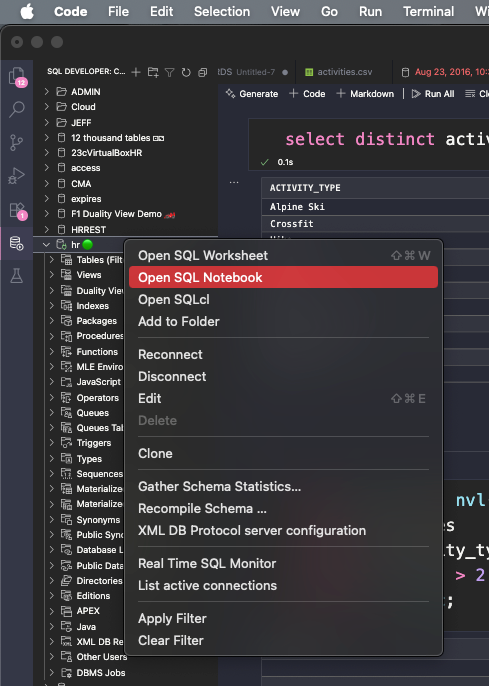
Two ways to start your first notebook
- right click on your connection
- create a .sqlnb file
So what’s a notebook, really?
Notebooks allow you to have a mix of markdown and application code, and are great for showing how your code evolves over time, or basically just to share a narrative.
So allow me to tell a story via a SQL Notebook. And we’ll use my old, dear friend EMPLOYEES to share the narrative.
Opening a SQL notebook will drop you into a new editor, with an unsaved .sqlnb file, and we’ll give you your first Code widget. The widget will accept what you would normally execute in a SQL Worksheet.
Our Extension’s code support extends to the Notebook, so things like code completion are available. And of course, you can manage the connection, just like you would with a SQL Worksheet.
I’m going to do a DESC to introduce our new table to you.
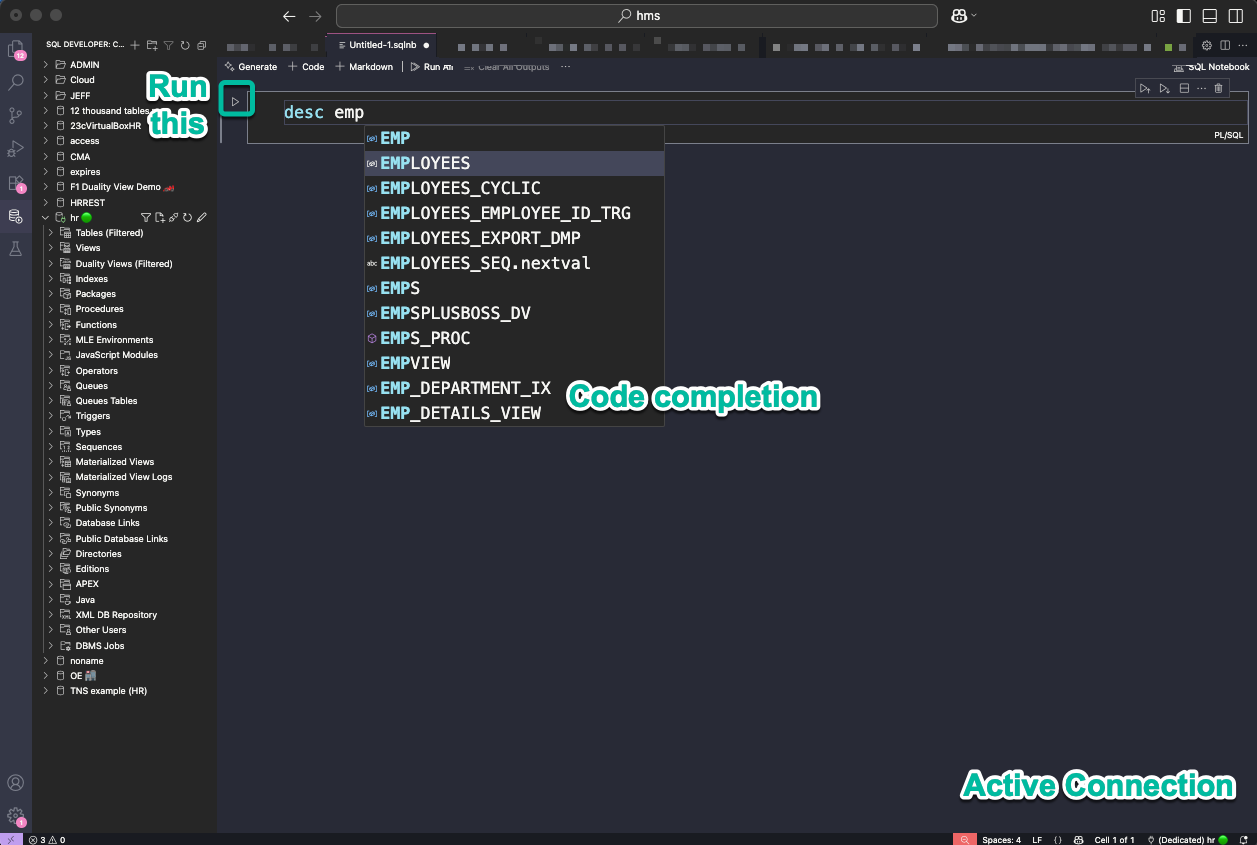
If I let the completer do it’s job, I have a simple DESC command, and it’s text output, as that’s a SQLcl command, vs a SQL command.
Now here comes the fun part…I can use THIS button to add another Code block, and it will go underneath the first block and its output panel.
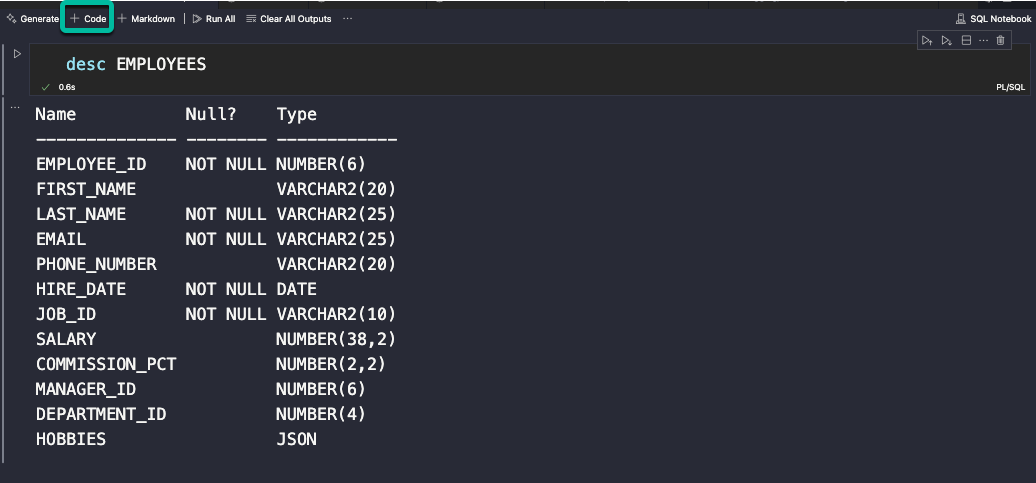
Let’s say I want to learn about my employees, in terms of the types of jobs they have. So with my 2nd code block, I can run a GROUP BY query with an optional HAVING clause.
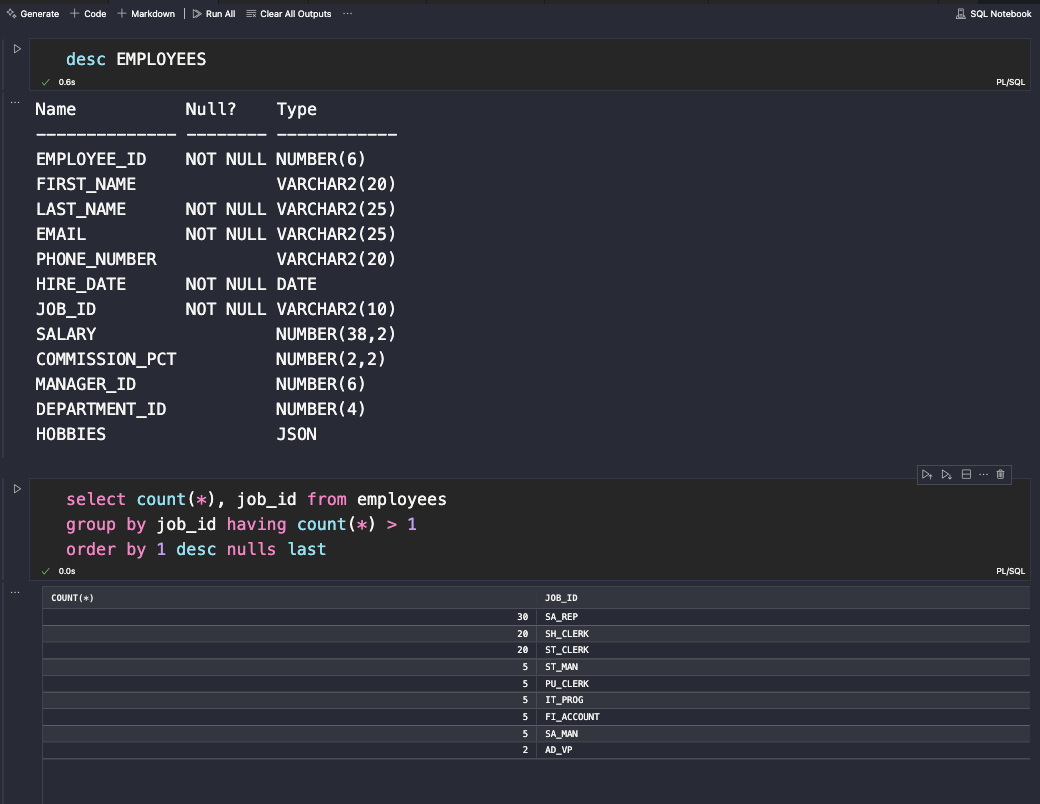
Do you see it?
As Keanu would say, ‘Whoa!’ We now have a vertical, stacking set of code blocks and code output. Contrast this with a SQL Worksheet, where you might have 100 queries, and a single set of Output panels on the bottom of the VS Code desktop, and you can only see 1 query result or script results at a time.
But wait, these Notebooks support Markdown, right? I can simply use the +Markdown button to get a Markdown editor.
So I do my ‘rich content’ work…

And hit the ✅ button, and voila! If I hit the hyperlink, my SQL text is sent to LiveSQL.
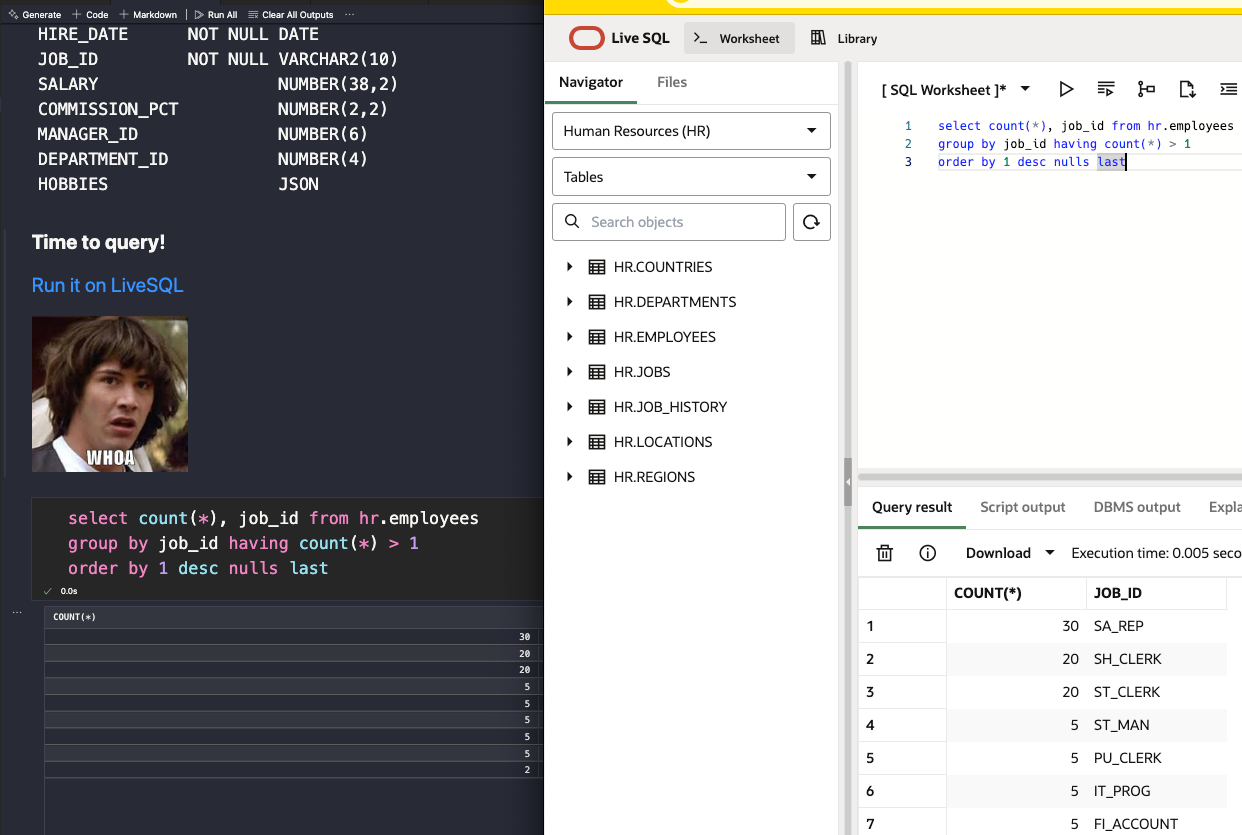
The ‘Run it on LiveSQL’ link generator is available from LiveSQL, and you can even generate buttons if you want.
As you build up your code blocks, you may want to run them one by one, or maybe you want to run everything before or after the current block. That’s what these buttons are for –
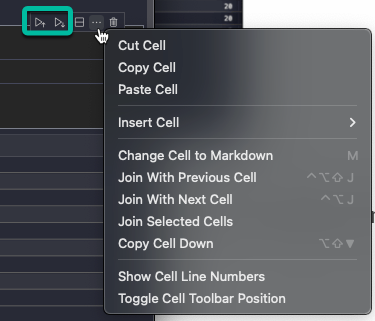
Iterate through as many code blocks and Markdown sections as necessary to do ‘tell your story.’ Once you have your file ready, save it! Anyone using our Extension can use it. Now, they’re queries won’t work w/o a database and data to run it in. But you could give them the ‘Run in LiveSQL’ option for ALL of them.
How do I re-open and re-run my Notebooks?
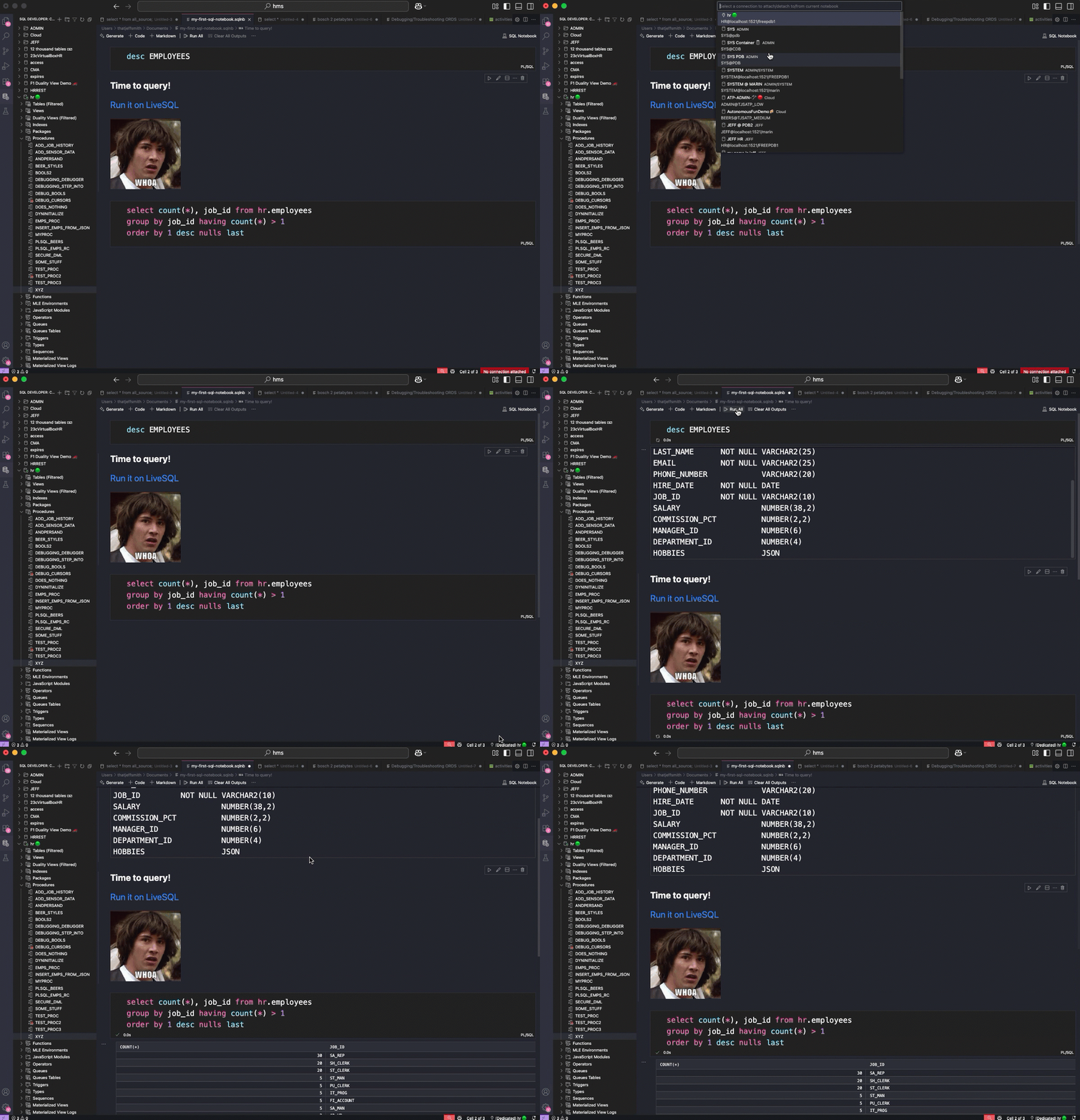
You’ll save your notebook to a .sqlnb file, and then re-open it at your leisure. Once it’s opened, you’ll need to select a connection, click the bottom right connection status window. Like this –
Summary
This represents a brand new way to work with your Oracle Database as far as SQL and PL/SQL code goes. The simple fact that you can have multiple query result/output panels per editor vs having a single one at the bottom panel in VS Code I think gives serious reasons for you to consider giving it a try.
Your story might be, that you’re trying to figure out a new SQL query. Use a SQL Notebook next time to track your different iterations!

20 Comments
Can I do a select into a variable in one block and use it in another block within the same notebook?
I’m not sure, I would guess not, but you should try. We do have tickets / items on the roadmap that would allow subsequent query blocks to build upon the ones above them, to support parent/child drill downs like we have in sqldev classic.
Hi, I’ve tried to find a way for variables to persist between cells in vscode, is there such a way? I’ve tried using sqlCl way of doing that, with this in one cell:
VARIABLE n_group_id NUMBER;
And then assignment in another like:
BEGIN
XX_TEST_SOMETHING.RETURNS(x_return_value => n_group_id);
END;
And it works, value persists. I can print it in another cell and it returns what it should:
PRINT n_group_id;
N_GROUP_ID
———-
86451199
But i can’t use n_group_id in sql, for example in where clause, i have to use :n_group_id. And doing that always shows me a bind window in vscode. Cancelling the window will not launch my sql. Value does not “copy” to vscode bind window, it is null, it’s not read from sqlcl context/session. Clicking ok with a null value,will override the variable to be null.
Am I missing something?
If I have these two statements in a worksheet…
select *
from employees
where salary > :high_val;
select *
from employees
where salary < :high_val; And I run the first statement, and input a value of 2500. And then I run the 2nd statement, I'm prompted for a value, but the 2500 I originally supplied is still there, so I only need to hit 'enter' to execute.
I like working with notebooks for day to day chunks of linked work SQL & anon PL/SQL blocks, however is there a way to get DBMS_OUTPUT.PUT_LINE output on these notebooks.
That should just be working, we even turn serveroutput on for you I believe, but you could force it on by adding it to your script.
Is there an option to export the populated notebook to pdf etc. I cannot find anywher.
No.
Just discovered this feature yesterday and LOVING it so far. Are there plans to have query results persist in the notebook without needing to re-run them later?
Not really…imagine how BIG those could get, it’s a scrollable cursor.
Now, maybe if you had say…10-25 rows, we could do that. Would that give you enough to play with?
If even the top 50 rows were persisted in the .sqlnb file, that would satisfy for a bunch of my use cases. I’m often running queries that summarize many hundreds of thousands of rows in a 20 or 30 row aggregated output. Maybe a setting that defaults to unchecked saying “Persist Cell Outputs” and another setting saying how many rows to truncate to when persisting (defaulting to something reasonable like 30 or 50)?
Sorry to jump in so late but I have been recently looking into this more and saw the post.
saving results with some limit would be a really good feature in my opinion. The SQL Server notebook already does save results and we are using it as a troubleshooting/sanity/RCA type of script. any incident call the fist thing you do is open the notebook, run all the queries and save the file to a new name. This gives us a quick ‘health check’ of what the databases are doing right that minute and then allows for a bit of RCA afterwards if needed. Not a replacement for our normal monitoring tools but allows for some more custom scripts/results. It is also a good training tool for new dbas/dbas switching databases to be able to go back and see what they saw at the time they were called.
If the Oracle notebooks could save even a portion of the data, limit it to X rows whatever I think that would be completely reasonable and make them even more useful.
Agreed, ticket has been filed.
Love it!
Are you thinking about adding charts?
Would be great!
Oh yeah
Everything is good but when I want to show only one row but it take 10 rows by default with an empty spaces. is their any way to fix this ?
That’s to accomodate the single record viewer and data exporter widgets to slide out.
This is fantastic for us. Is there any documentation on which markdown features are (or aren’t) supported?
Whatever vs code supports!
Very cool, I’m working on a walkthrough of a data modeling exercise for our interns and this will work perfectly for the demo – and will serve as notes for them after the meeting as well.