
What if connecting to your Oracle Cloud Oracle AI Databases was as simple as –
SQL> connect "My Cloud Database"This isn’t a ‘WHAT IF’ – it’s a reality! And not only that, this works across all Oracle AI Database types, not just Autonomous! That even includes lift-n-shift database instances you’ve setup on your OCI Compute nodes, vs say one of the fully or semi-managed Oracle AI Database Services.
Traditionally, database connections were all local
Your Oracle database connections are usually defined on your local machine, in files setup for your tools like SQL Developer (VS code or Classic), SQLcl, etc. Of if you had a mid-tier, your webserver would have local files to setup the database connection pools. And yes, we support this Cloud defined database connections technology for defining your ORDS connection pools, too!
Think Cloud
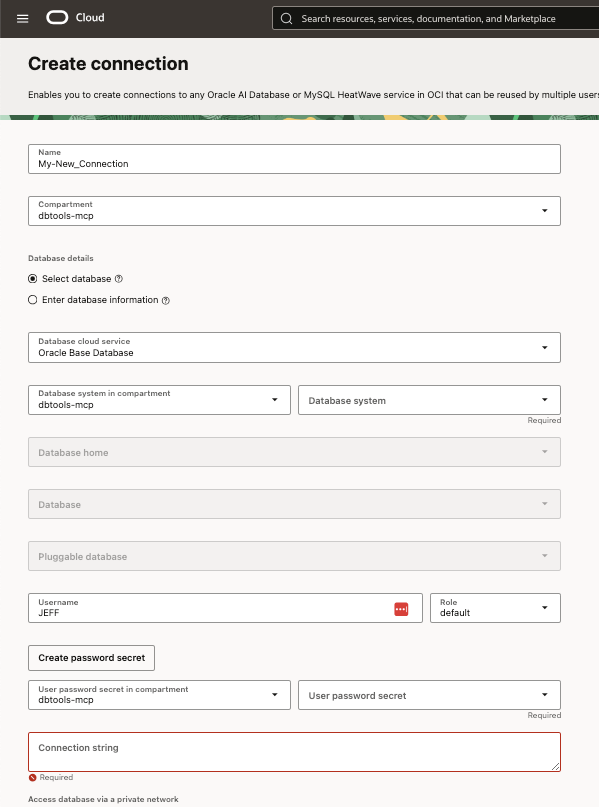
This service isn’t new. It’s been around for at least the last 5 years, and I’ve even talked about it a decent amount here, but let’s do a quick refresher.
You can also define Connection resources in our Database Tools developer service in OCI.
Our ‘wizard-like’ dialog let’s you browse your database services you’ve got available in your tenancy – and then you just supply the database user, and then we’ll help you create a secret in the OCI Vault to store your password and SSL certs/wallets as necessary.
Don’t like passwords? Those aren’t required in Cloud! Our docs include a tutorial for setting up Token based auth. Your DB user can by sorted via IAM, instead!
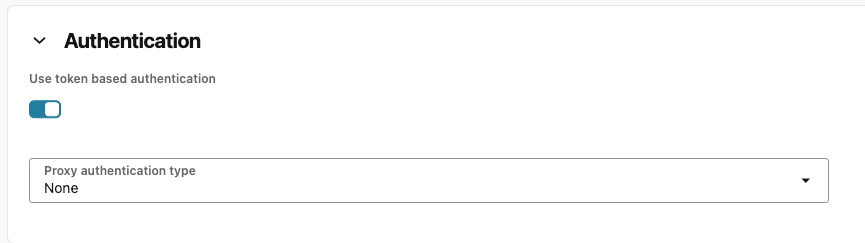
But either way you choose to go on authentication (passwords or tokens), your new connection resource will be an OCID. You can reference these connections using your OCIDs to do many amazing things!
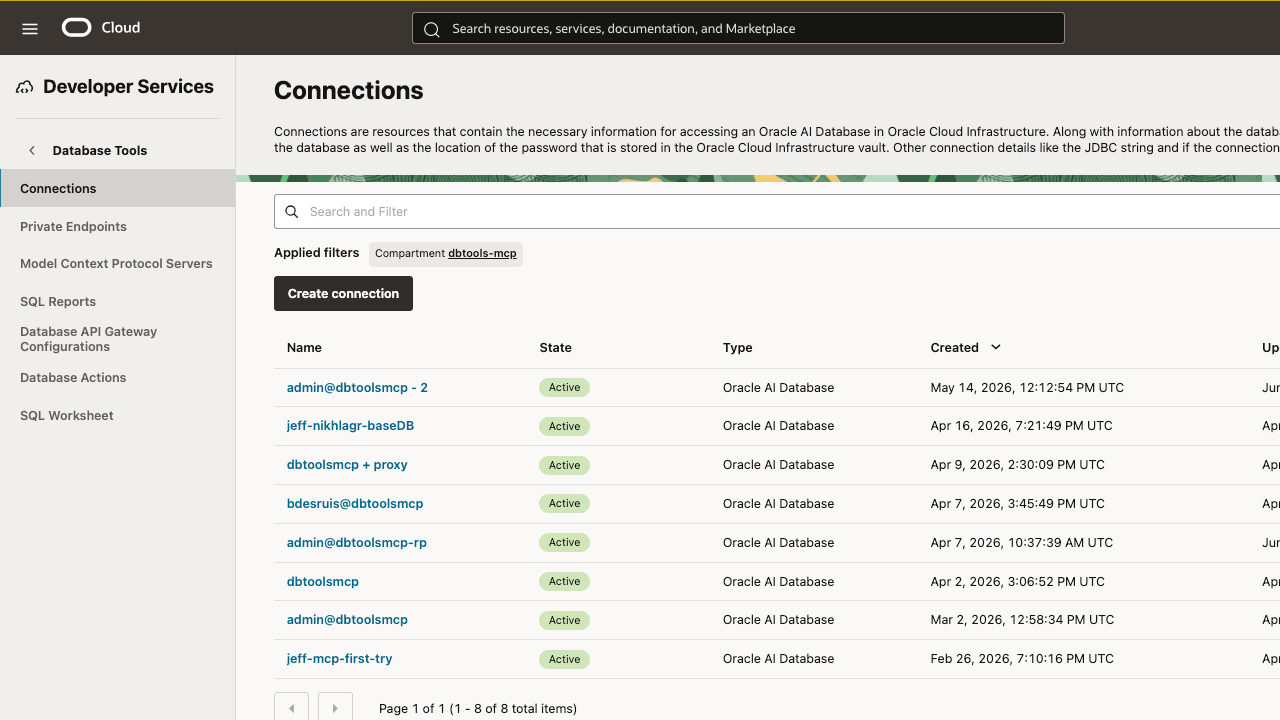
These connections empower three things, primarily –
- SQL Developer Web – in the OCI Console, you can run queries, manager user, check out performance problems, etc (blog | docs)
- MCP Servers – connect your Agent with your cloud based Oracle database, and use our MCP Tools (blog | docs)
- Runtime support – use our OCI Service endpoints to do things like… execute SQL over your connection via REST/CLI (blog | docs)
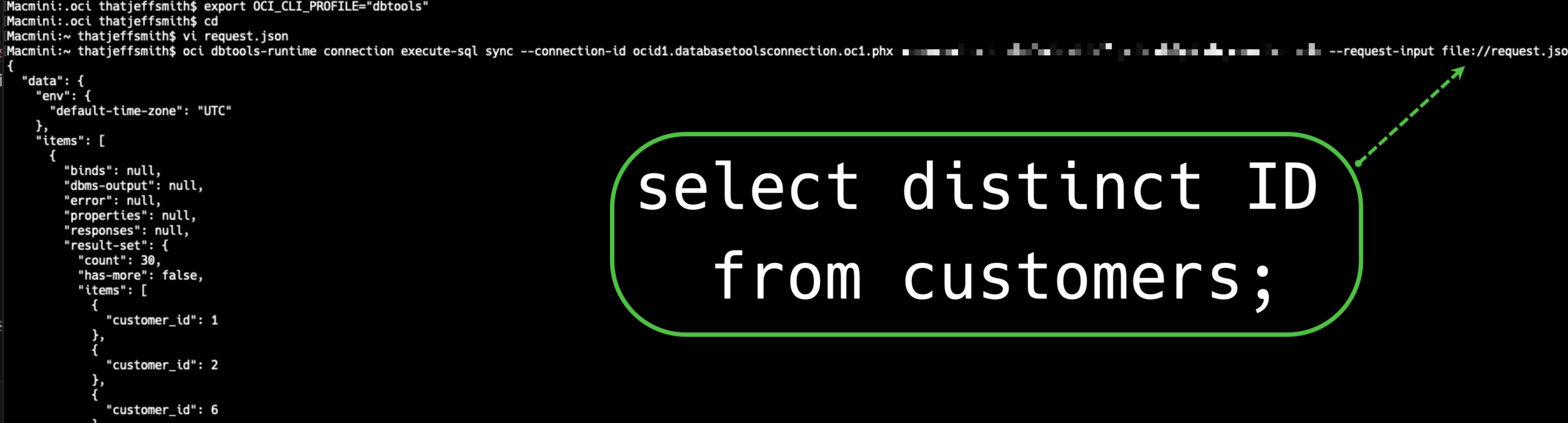
The runtime support is brand new and worth a special call out – read Justin’s blog for a full run-down. But very briefly, I can use the infrastructure in our Database Tools Service to execute queries over REST (or CLI), using the connection resource in my cloud tenancy – NO ORDS or SQLcl REQUIRED!
Here’s a screenshot of me using the OCI CLI tool to submit a SQL query to our connection, and our OCI Database Tools service takes that, runs the code for us in the database, and returns the query/script results as a JSON document.
But wait, there’s more. This is the actual meat of today’s post, a FOURTH USE CASE.
Local app/tooling connections to your OCI database
How about instead of getting the username, password, and TNS string for a Base VM, Exadata CS, or Autonomous Serverless (ADB-S) database, you instead only had to refer to a single OCID?
SQL> connect ocid1.databasetoolsconnection.oc1.phx.abcdefghijilmnopqrstuvwxyz.123
Connected.Whoa.
What’s that OCID, for, again?
We’re making a connection, with a connection resource defined in our OCI Tenancy. We create and manage those in a free developer service named, ‘Database Tools.’
In the console, I can create and test my connections. I can also use a connection to get a SQL Worksheet to run queries – no need to setup desktop tools for quick and dirty work in the database.
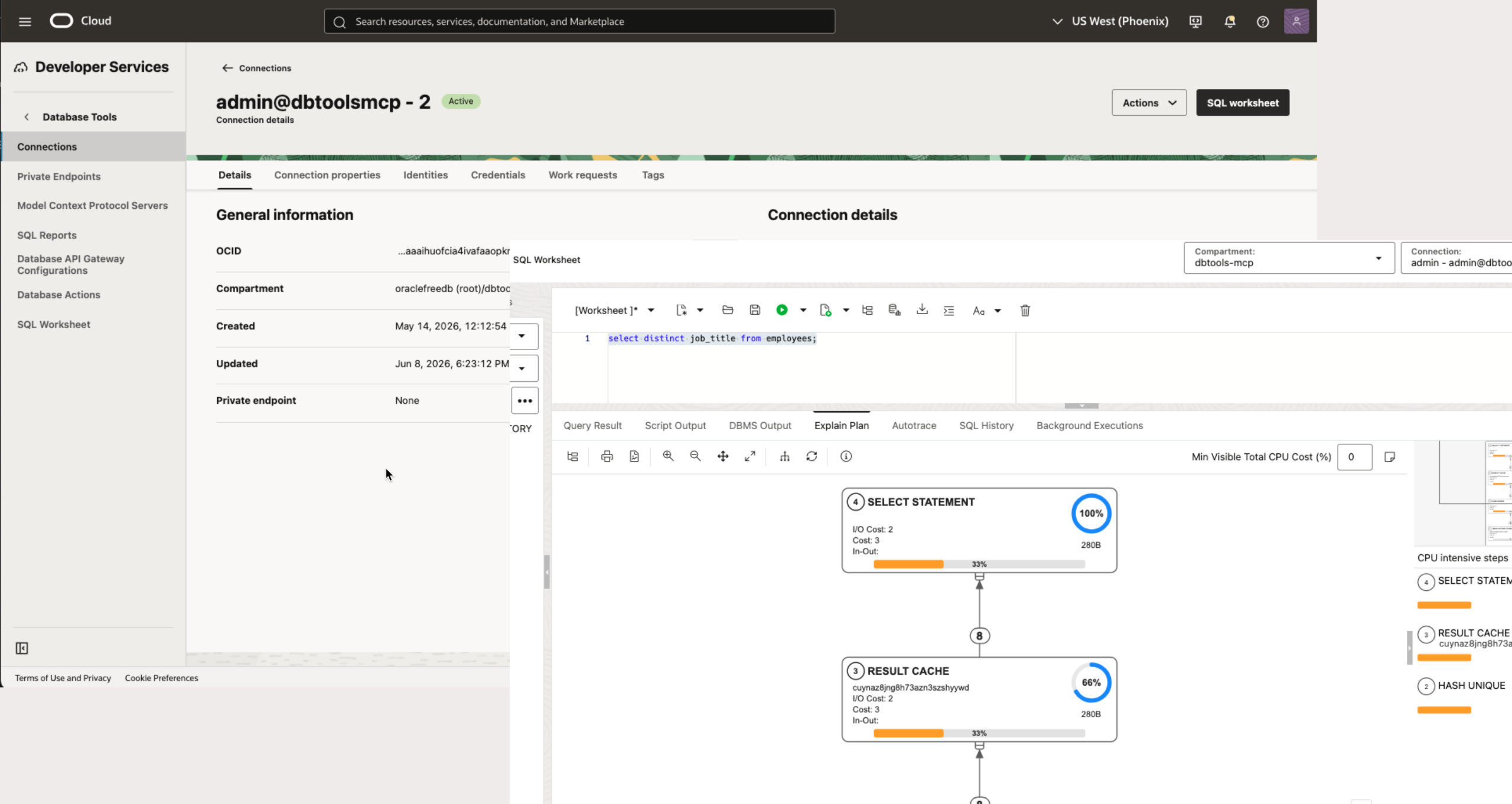
But if I am on my local machine, and I want to do some work with SQLcl, assuming I have my OCI profile setup correctly, I should be able to just refer to the OCID for this connection called ‘admin@dbtoolsmcp -2’, and SQLcl can pull down everything it needs to create a database connection.
You can find the connection OCID in the console, and there’s even a handy ‘Copy’ button there for you scoop it up.

But, shouldn’t it be easier than that?
SQLcl Connection Manager command, CONNMGR
SQLcl has a built-in connection manager (CONNMGR, or CM for short) that lets you browse and manage both local and OCI-sourced connections. This allows you to get a cloud based, by name vs OCID!
Just remember to include the -oci switch. The result is a list of connections in your tenancy, organized by OCI compartments.
SQL> cm list -oci
.
├── dbtools-dev
├── dbtools-mcp
│   ├── admin@dbtoolsmcp - 2
│   ├── jeff-nikhlagr-baseDB
│   ├── dbtoolsmcp + proxy
│   ├── bdesruis@dbtoolsmcp
│   ├── admin@dbtoolsmcp-rp
│   ├── dbtoolsmcp
│   ├── admin@dbtoolsmcp
│   └── jeff-mcp-first-try
SQL>
And if I want to connect to one of these by name, I can simply refer to them by their name vs their OCID. So now it’s ACTUALLY easy.
No browsing to OCI Console. No finding an OCID and copy/pasting it to your bash terminal. Simply browse your OCI sourced connection definitions directly in SQLcl, pick one by name, and connect!
SQL> oci profile dbtools
Region set to: us-phoenix-1
OCI Profile set to dbtools
Transfer method set to oci
SQL> connect -oci admin@dbtoolsmcp
Connected.
SQL> show connection
COMMAND_PROPERTIES:
 type: OCI
 oci: true
CONNECTION:
 ADMIN@jdbc:oracle:thin:@(description= (retry_count=20)(retry_delay=3)(address=(protocol=tcps)(port=1522)(host=adb.us-phoenix-1.oraclecloud.com))(connect_data=(service_name=abc123_dbtoolsmcp_low.adb.oraclecloud.com))(security=(ssl_server_dn_match=yes)))
CONNECTION_IDENTIFIER:
 ABC123_DBTOOLSMCP_low
CONNECTION_DB_VERSION:
 Oracle Database 19c Enterprise Edition Release 19.0.0.0.0 - Production
 Version 19.31.0.1.0
NOLOG:
 false
PRELIMAUTH:
 false
SQL> I can also create a SQLcl named connection, using any name I want…your fellow OCI tenancy users won’t see these connections, they’re specific to your local copy of SQLcl.
Once connected, use the ‘connect’ command again, but this time with the -save flag, followed by LOCAL connection name you want to use.
SQL> connect -save OCI_DBTOOLS_19c_ADB_PHX
Name: OCI_DBTOOLS_19c_ADB_PHX
OCID: ocid1.databasetoolsconnection.oc1.phx.abcderghijklmnopqrstuvwxyz_123
Type: ORACLE
Username: admin
Connection String: (description= (retry_count=20)(retry_delay=3)(address=(protocol=tcps)(port=1522)(host=adb.us-phoenix-1.oraclecloud.com))(connect_data=(service_name=yplnoxgbze43wl9_dbtoolsmcp_low.adb.oraclecloud.com))(security=(ssl_server_dn_match=yes)))
SQL> disconnect
Disconnected from Oracle Database 19c Enterprise Edition Release 19.0.0.0.0 - Production
Version 19.31.0.1.0
SQL> conn -name OCI_DBTOOLS_19c_ADB_PHX
Connected.
SQL>How to set up your machine so it can work with your OCI tenancy, and then enable SQLcl connectivity
Prerequisites:
- SQLcl – at least version 23.3 – but please keep up to date, latest is 26.1.2!
- OCI CLI installed
- your IAM user pem key uploaded to OCI
- network connectivity from your machine and the database in question
It’s easy, on a Mac, I simply (Docs) –
brew install oci-cliAnd then I can use the oci setup command.
oci setup configAnswer the questions.
That looks like this –

Once the utility has done its job, you’re going to upload the public pem key to your OCI Console User ‘Tokens and Keys’ page.
But wait, what about
What about databases behind a private endpoint?
If your database isn’t available from the public internet, and most production databases won’t be publicly accessible, you’ll need to setup a bastion or a SSH tunnel, or .. make a network path from your machine to an appropriate VCN. Physics and security rules still apply here. But SQLcl can also run in OCI CloudShell and on OCI Compute nodes in your tenancy, and even from there this could be a super handy feature.
What about doing this from VS Code and your SQL Developer Extension?
We’re building GUI support for the connection dialogs to allow you to source your connections from your OCI tenancy, and I look forward to sharing this with you VERY soon. Think weeks, not months.