

I started this post in Qatar waiting for my connection to Hyderabad. My goal is to publish 7 blog posts in 7 days, and share some personal / travel stuff alongside the technical content you’re used to seeing here.
Today’s article is a short one, around one of our newer features, introduced in version 25.4 (changeLog) of the SQL Developer Extension for VS Code –
- Create table
- Edit table
We’ve brought over the editors you’ve seen previously in SQL Developer and SQL Developer Web.
Tables are JUST the start, you can expect views and other popular schema objects to come over, next.
Let’s create a table
There’s actually two new interfaces for creating new tables, but for the moment, ignore the ‘Import Data’ menu item.
Notice these open as documents, not pop-up modal dialogs. This brings in many advantages other than just feeling more modern. For starters, I could have multiple of these open or switch between tasks.
To get started, simply ‘right click.’ If on the tables node you’ll see this:

I can simply click the ‘ + Add’ button a half dozen times and then fill out the details as needed.
A few comments –
- type over the column names directly
- reorder the columns using the Up/Down controls
- ‘check your work’ periodically by tabbing to the DDL page
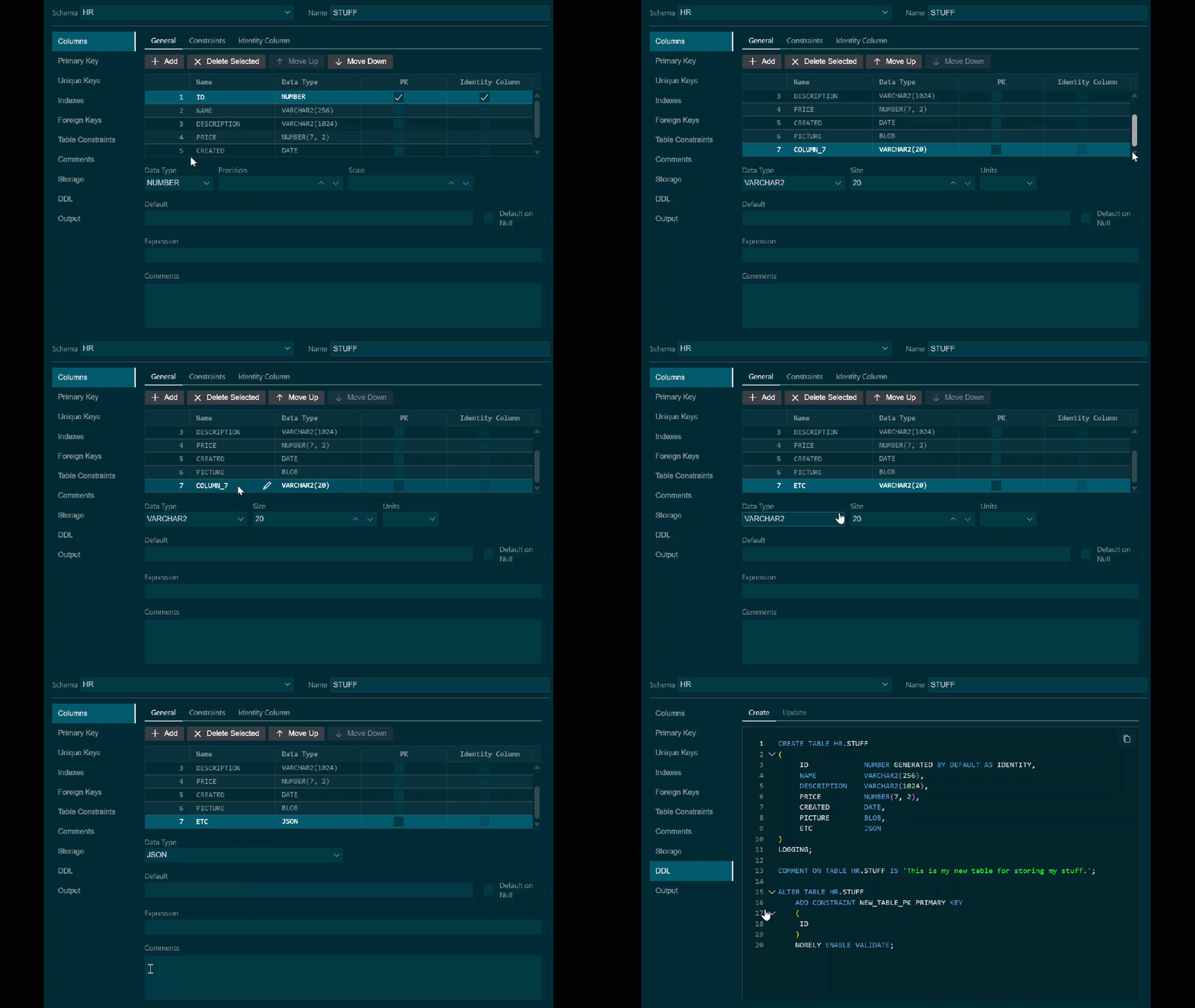
If you click ‘Apply,’ we’ll do the work and show the output in the Output panel. You can work iteratively, so if you run into a problem, you don’t have to start over.

This is also helpful if you’re on the Edit dialog for an existing table. The other nice thing there for editing tables is the DDL page can show both CREATE and ALTER syntaxes.