

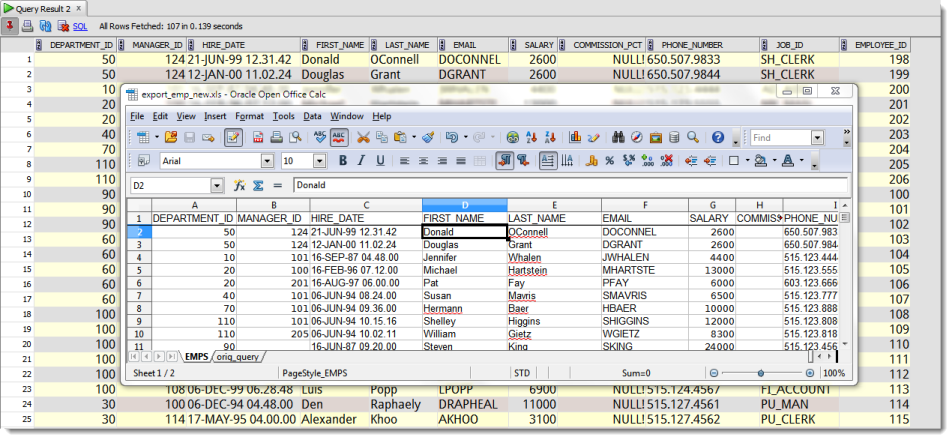
In a previous post, How to Import from Excel to Oracle with SQL Developer, I covered step-by-step how to import data from Excel to an existing Oracle table. This post shows how to take a spreadsheet and transform it into a new table in your Oracle database.
But first, please permit me just a few seconds as I step up to my bully-pulpit:
Please do not import data to Excel just because you know SQL better than Excel functions and macros.
Everything has a cost. If you can keep your ad-hoc queries local to your machine and your spreadsheet, that’s a win for everyone. However, if you wan to put your data in Oracle anyway, then who am I to argue? So without much further ado, here’s what you need to know to load your data. And I promise – no more preaching, mostly.
Hate GUIs, and want to do this from the command-line?
Sample Data
For this exercise I’m taking some data from HR.EMPLOYEES and sending it to a new table. I’m purposely querying the data out in a different column order than the original source.
SELECT DEPARTMENT_ID, MANAGER_ID, HIRE_DATE, FIRST_NAME, LAST_NAME, EMAIL, SALARY,
COMMISSION_PCT, PHONE_NUMBER, JOB_ID, EMPLOYEE_ID
FROM EMPLOYEES
Obviously if your data is already in a table somewhere, it’s always going to be better to load it to a new table via a Create Table As Select (CTAS.) Even going across a DB_LINK may be more efficient than writing to Excel and then loading it back to Oracle. For this tutorial I’m assuming your data ONLY exists in Excel before getting started.
Step One: Connect to Your Database as the New Table Owner
You can only invoke the ‘Import Data…’ wizard from your connection owner schema. Of course if the table already exists, you can simply load your data by mouse-right-clicking on said table.
Step Two: Find the ‘Table’ Node and Access the Context Menu
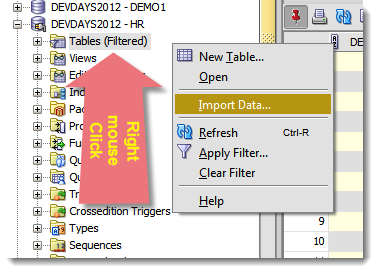
Step Three: Select ‘Import Data…’
It says ‘Import,’ but we’ll also be creating a new table for the data to be stored in.
Step Four: Step Through the Wizard
You get to answer a few questions. Don’t like wizards? You could always script out this process yourself using SQL*Loader.
Load the file
Point to your XLS, XLSX, or CSV file.
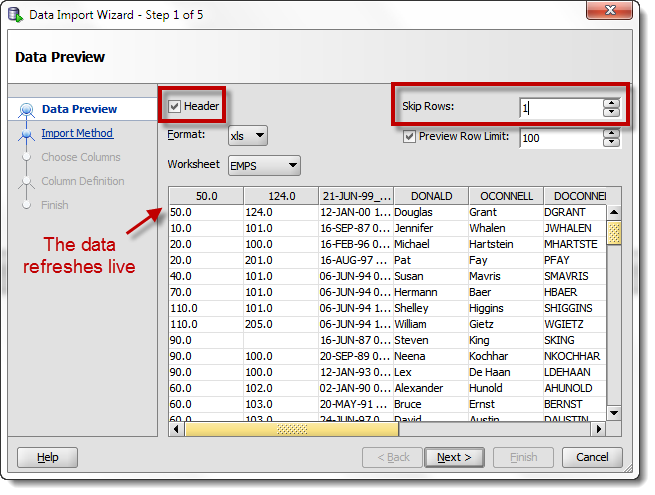
Preview the data
Depending on the size of your spreadsheet, it may take a few moments to load up the preview dialog. This step exactly mirrors the data preview from my earlier post. However, a few things to note:
- The ‘Header’ tell the tool that there IS a header and not to include the first read row as data
- Skip rows – how many rows to skip. If your header line doesn’t appear until row 5, you’ll want to skip 4 rows
- You can load the data from any worksheet, we’ll default to the first one though
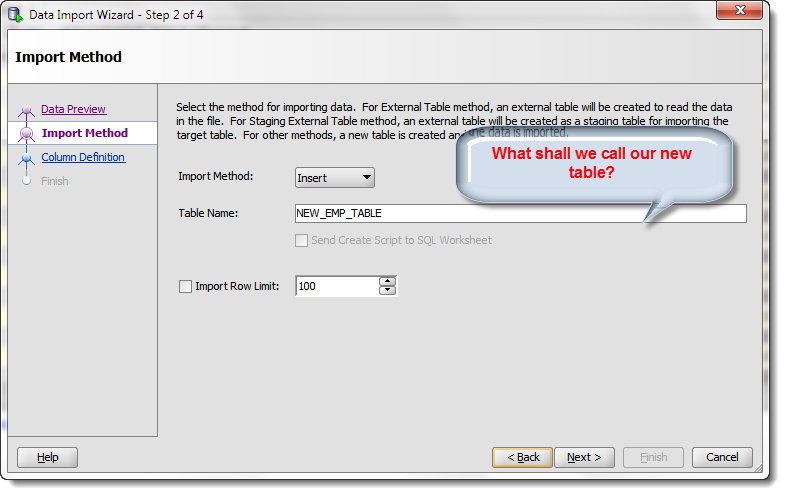
Name Your Table
There are a few options here. You can generate a script to create the table and then populate the table via INSERTs. Use this option if you want to preview or approve what’s going to be happening in your database. You can also tell SQL Developer to only load a specific number of rows.
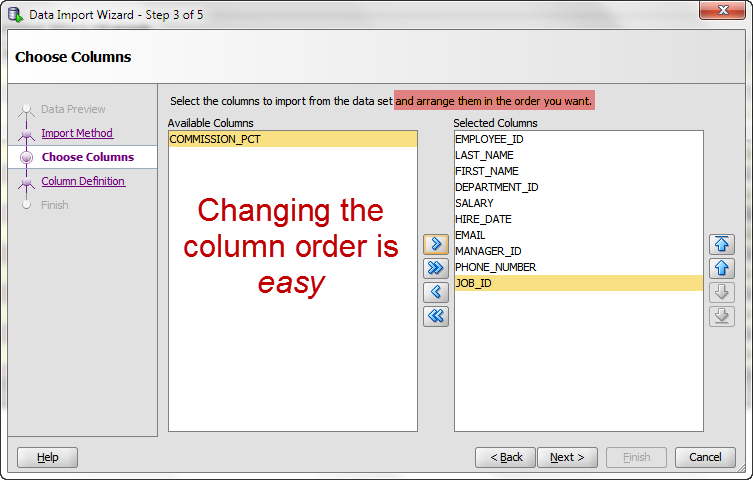
Choose Columns
This step is important. Your spreadsheet may have 30 columns, but you only want to import 10 of them. Select the 10 columns you want to form the new table. Also, add them to the ‘Selected Columns’ panel in the ORDER you want them created in the new table.
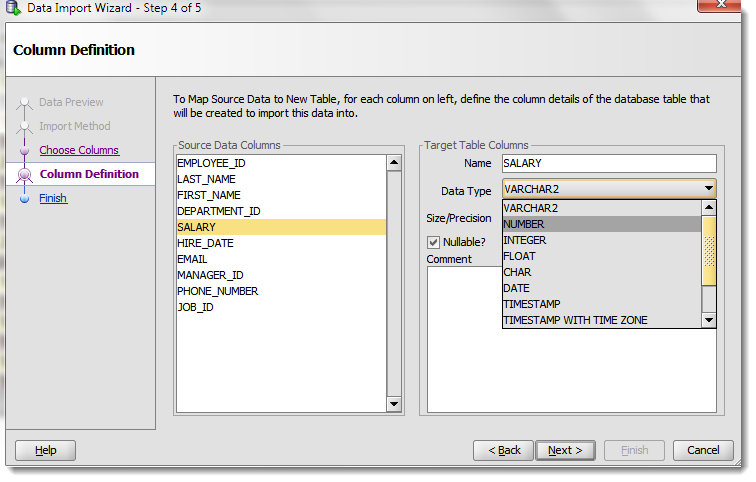
Column(s) Definition
If there’s a wizard you don’t want to blindly click through, this one definitely qualifies. But if you’re asleep at the wheel, PLEASE make sure you’re paying attention when it comes to defining the columns. Two things to be aware of:
- We’re defaulting the columns to strings (VARCHAR2s)
- We’re defaulting the size to the max length of the data previewed
For point #1, we’re looking to have a better ‘guessing’ scheme for upcoming versions. But there’s no bigger problem in applications and data quality today than developers storing dates as strings or numbers. Be sure the datatype for each column is appropriate. If in doubt, consult your data model. If you don’t have a data model, consider taking a step back and creating one. I know, I know, I said I wouldn’t be preaching anymore. Sorry.
For point #2, there might be values that exceed this length. Size the columns appropriately based on your data model and application specifications.
Verify Your Parameters
This step is voluntary, but I recommend you always use it. It will help you catch date columns defined with missing or invalid date formats.
Finish!
SQL Developer will either create the table and load the data, or will will generate the create and insert scripts.



78 Comments
Hi,
I would like to Load data from Excel to a Oracle Table but the table does not exist in the schema i connected to.but we have a synonym created in the schema connected to.
So my question
Is it possible to load data into a Table created in different schema?
Go to the Other Users part of your connection tree. Find the schema where the table ‘lives’ – do the import from the actual table. This will work assuming you have INSERT privs.
Great article.
Thanks for your valuable point of excluding header which removes duplicate columns,it save lots of time for me. 🙂
Hi Jeff,
Greetings of the day,
Introduction:First of all i am a newbie to oracle and its things, i have installed oracle 12c.
Task: To import a csv file with a size of 400MB with 5.5 million lines and 35 columns into a table on sql created with exact same column headers.
Mode of Import : Data Import Wizard
Status shown after clicking Finish : Time Taken approx. 3 Minutes, import successful
Problem1: only 2.5 million lines completed
Problem2: All the cells of the are having NULL values
could you please help to solve the issues??
Thank you in advance.
Renish
not w/o seeing your data
you’re new to oracle, but for uploading THAT much data, you should be using the SQL*Loader route – it’s much better adept at handling larger amounts of data.
since you’re new, you could try this – on the load method on one of the very first few screens, set to INSERT SCRIPT. That will give you a file of 5.5M insert statements for your table. You’ll want to run it in SQL*Plus.
Can we use this step for large amount of data? i’ve tried to import 47k rows of data and the process was stuck in step 1.
or there is another ways? beside of split the file into smaller piece of rows ofcourse.
Should be able to. I’ve done a million rows before with no problems.
Keep the preview window small. Use xlsx format whenever possible. Try to be on v4 or higher. If all that fails, save your excel file to a csv and try that.
Thanks Jeff! Started using SQL Developer at the start of the year and your blog is amazingly helpful!