

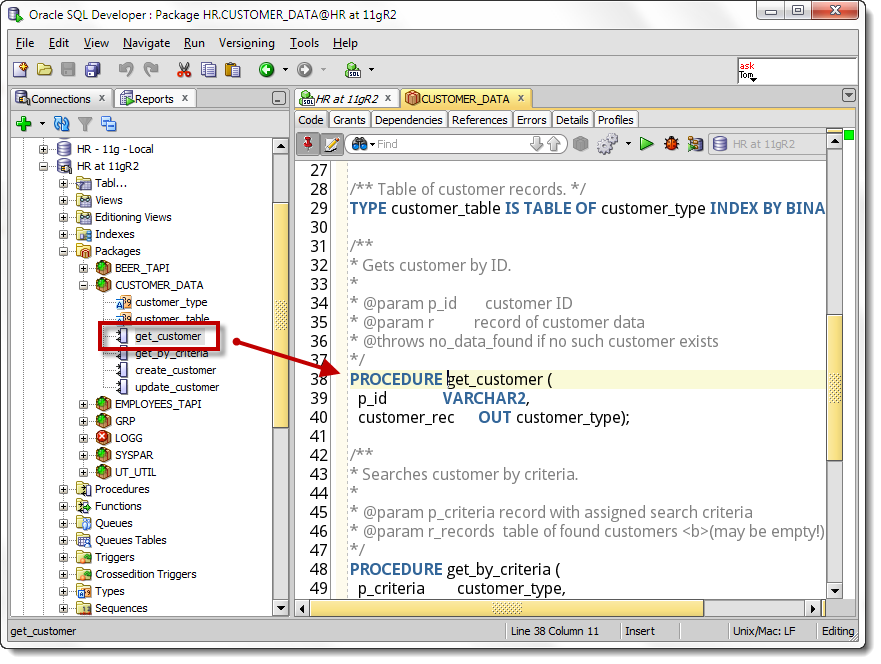
If you’re browsing your packages using the Connections panel, you have a nice tree navigator to click around your packages and your variable, procedure, and functions.
But
What if you drill into your PL/SQL source from the worksheet and don’t have the Tree expanded?
Let’s say you’re working on your script, something like –
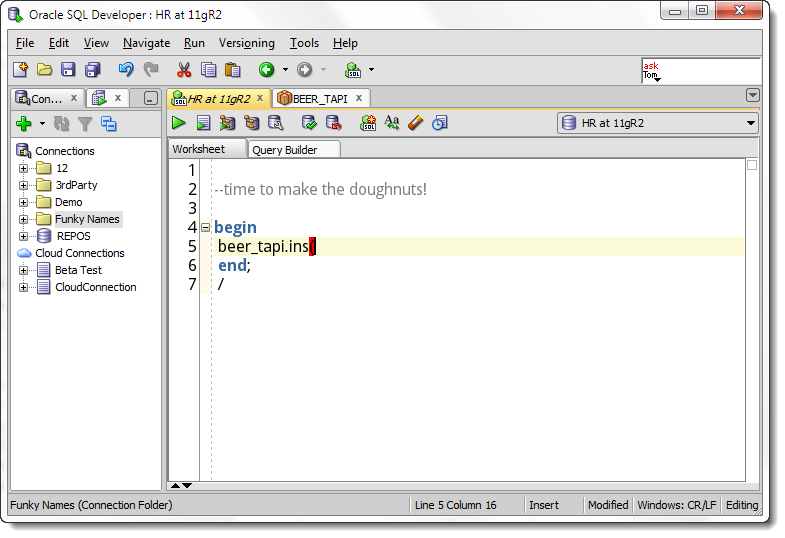
So I need to reacquaint myself with just what my beer package requires, so I’m going to drill into it by doing a DESCRIBE (via SHIFT+F4), and now I have the package open.
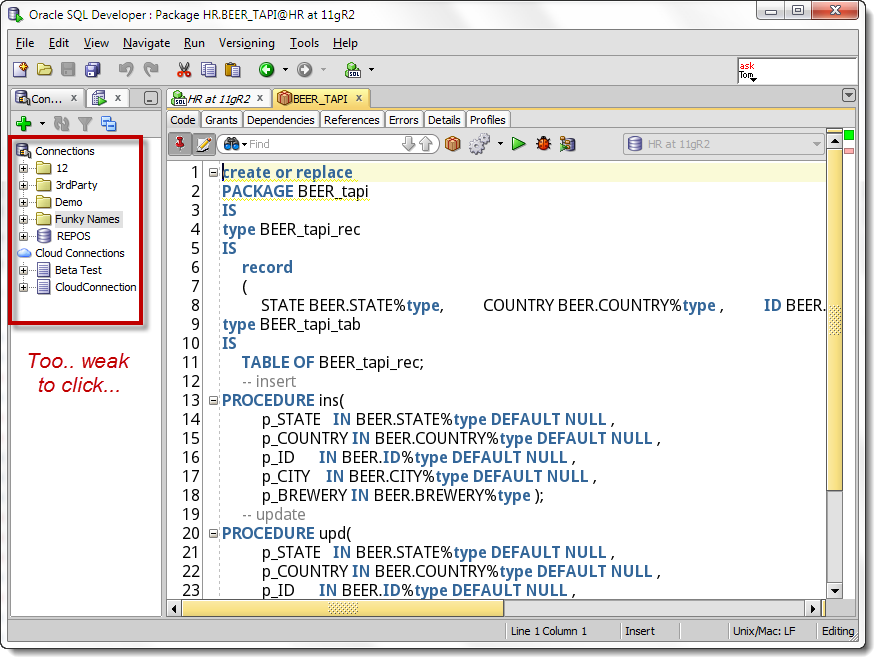
Please don’t tell me I have to do the click-click-click thing in the tree!?!
Just Open the Quick Outline Panel
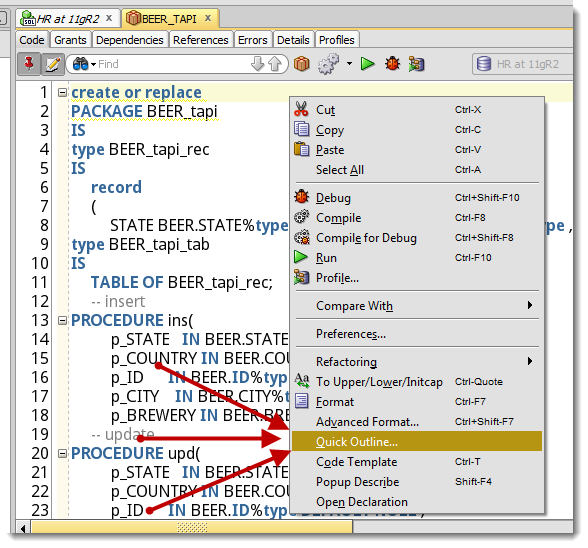
Just right click in the procedure editor – select the ‘Quick Outline’ in the context menu, and voila!

If I want to drill into my procedure declaration, just click on said procedure name in the Quick Outline panel. This works for both package specs and bodies. Technically you can use this for stand alone procedures and functions, but the real power is demonstrated for packages.

14 Comments
Hi Jeff,
since the upgrade to version 4.2.0(.17.089) there is no ‘Quick Outline’ in the context menu in the procedure editor. Where has it gone?
Thx
Matthias
It’s still there, just renamed..I forget what exactly, away from my PC and on vacation.
Hi Jeff,
thank you for your quick reply.
It’s called ‘code outline’ and got it’s own icon in the code editor.
It works great for ‘small’ packages but only shows a red dot for my really interesting packages (even in version 17.2). Needs still a bit of optimization. Thank you!
Cheers
Matthias
Hi Jeff,
just wondered, in the Outline Panel we have the text box at the top to filter the list, can you add wildcards to this ? e.g. “*imp” or “%imp” would filter all elements with “imp” in the name ?
sometimes (often) i forget the start of a function name but remember something about it
thanks
Neil
When using the Quick Outline panel on privately declared objects in a package body the tool sometimes throws me on the definition of the private object and sometimes on its code. Is there a way to control this behaviour ?
Hi Jeff,
SHIFT+F4 shows me the package specification. Any similar shortcuts for viewing the package body as well?
There’s a button in the editor to auto-toggle the body.
Thanks Jeff.
There are two ways:
1. Using the Open Body/Spec button on the toolbar
2. CTRL + double click on a function/procedure in the package spec
However, I am using version 3.2.20.09 which exhibits this bug for #1:
https://forums.oracle.com/forums/thread.jspa?messageID=10675482
Hi Jeff,
Since you brought up shift-f4 describe, I’m seeing some behavior that I find somewhat annoying. If I have just the package name typed in e.g. my_package the describe works fine. If I have input after the package name it does not work. e.g my_package.my_function I get “No object found my_package.my_function”. If I want to do the describe, I need to erase everything after the “.” in my worksheet. Is this expected behavior? Seems like it should strip back to the package name and do the describe. Im running version 3.2.20.09 on Mac OSX Lion.
Thanks for the great blog!
I think technically it IS the expected behavior, since technically your my_function is not a database object, but rather a part of my_package. Now, if you ask me, and you are so I’ll answer, I think we should be smart enough to figure out what we really want to describe is my_package.
There’s another way to do this, and it’s what I do instead of backspacing through the .my_function( text: highlight my_package, then hit SHIFT+F4.
I’ll talk to the developer to see if we can’t be a little less precise when describing package calls.
Thanks for the highlighting tip – hadn’t thought of that!
An even better solution – ctrl+click on the word, that will work RIGHT NOW. Going to blog this immediately 🙂
The developer tells me he has fixed the describe bug too 🙂
Hi Jeff,
Thanks for the Outline Pane tip.
It’s odd that the Outline Pane isn’t available from the View menu like most if not all of the other tool panes are. If not for tips like this or close observation of the context sensitive menus I wouldn’t even know it exists.
This pane would be even better if showed functions and procedures nested inside the top level functions and procedures, and of coarse further nestings inside of nested functions and procedures.
Agreed on all counts. The lack of the View menu placement might be due to the fact that the Quick Outline panel has no context out of the Procedure Editor. Not sure that’s a good enough reason though and will see what we can do to amend this in a future release.
Thanks for your support David and for the input!