

I’m not saying there’s anything wrong per se with SQL Developer’s tree control for navigating your connection objects. As a matter of fact there are a few things to really admire about the tree implementation. Just in case you have NO IDEA what I’m talking about, here is the tree in all its glory.

Scrolling can get tedious on large databases. So here’s a few tips for those that are keyboard savvy:
Navigate the tree with the keyboard, type into your objects
Just the first letter will take you to the next tree item of that letter.
Use the Right Arrow key to expand a tree or sub-tree. Jump to tables with ‘T’, then use the RightArrow key to expand the list of tables. Here’s a quick example of how to jump into a another schema, view list.
‘O’, ‘RightArrow’, ‘S’, ‘S’, ‘S’, ‘RightArrow’, ‘V’, ‘RightArrow’, ‘P’
That series of keystrokes allowed me to ‘walk the tree.’ I jumped to ‘Other Users’, dove into that list, typed into the ‘SH’ schema, expanded that, then went into ‘Views’, and jumped to the ‘Profits’ view. It took me much longer to type that up then it took me to actually do the task in SQL Developer.
If you are using SQL Developer and you have not acquired this skill yet, please stop reading now and go jump into SQL Developer. Try it. Try it again. Once mastered, you’ll be much more proficient with the tool and a lot more productive as well.
Maybe the Tree is just ‘too big’ for you
You don’t use Editioning Views, Queue Tables, Crossedition Triggers, Materialized View Logs, Directories, Editions, Application Express, Java, etc. Even with the keyboard ‘tricks’, that’s a lot of stuff to wade through.
Or maybe you just don’t grok the tree, no matter what you try.
Thankfully we have an alternative, and it’s called the Schema Browser.
On your tree list, select your connection and mouse-right-click. Towards the very bottom of that context menu, select ‘Schema Browser.’ This will open a new page in your panel where you see the connections and reports.
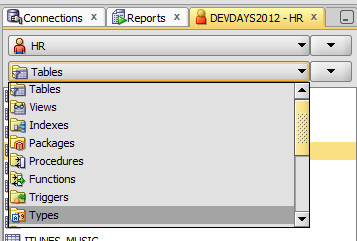
The Schema Browser is an alternative navigator for your database connection objects. It gives you a ‘Drop Down’ control for selecting both ‘schema’ and database ‘object type.’

Navigation Via Drop Down Controls
It’s pretty simple really. First click into your schema, user, account, whatever. Then click into the type of object you want to populate the list.
Pick a Schema

Pick an Object Type

You can still navigate your lists with the keyboard. All of the object specific context menus are intact. Filters, refresh, and ‘new’ buttons are available to the right of the object drop down control with a little ‘down arrow’ looking button. You will still use the Connections panel to manage your connection to that database.
And if you get bored of this view, you can always close it and go back to the Tree. Or use both. I don’t care really so long as you find something that works for you!

48 Comments
I have used SQL Developer for years, and actually never used the “Schema Browser” feature. Searching for something else about SQL Developer I stumbled over this feature. Nice. But I have one question: Shouldn’t there be an alternative to list “Package Bodies”. My only choice is to see “Packages”, and now I have list of the package specifications. But I also want to choose to see package bodies (without having to select the specification and choose “Edit Body …”.
And another thing … when I have your attention ;-). There should be an option in the “Settings…”->”Environment” to choose “Lock folder structure”. I organize my connections into a folder structure, and It’s so easy to move a folder by mistake. Then you spend too much time looking for it, and moving it back.
Hey Jeff,
Can you share what the Schema Browser does under the covers to create the list ob objects (like, the SQL)? I’m not looking for a complex discussion – just wondering what privilege I would have to grant to someone so that they can view the names of the objects, without actually giving them SELECT on those objects. I tried granting select on ALL_TABLES, and the results are still filtered in the Schema Browser. Thanks for a great blog!
Brandon
Everyone has select privs on all_tables…a user needs priv on the object itself first, then it will appear in the views.
Hi,
When I am running a procedure from schema browser, it is getting auto-commit, though autocommit feature is off in preferences. Could you advise how to change the same.
Thanks
your stored procedure probably has a COMMIT or a DDL command in it – which will commit your session
Hi,
A long time has passed since previous discussions. But I still can’t find any way to make the Schemabrowser remain open at shutdown / open automatically on SQL Developer startup.
Am I missing something?
Thanks, K.
No changes in this area are planned…you’ll need to always open the Schema Browser.
This paragraph is really a pleasant one it helps new the web people, who are wishing for blogging.
Hi Jeff,
How can I extract DDL for all Directories in all schemas?
I couldn’t find them in Schema Browser, and I don’t want to go one by one schema and extract DDL.
Thanks.
You’ll have to use the Data Modeler – which is part of SQLDev – to do this.
Import the data dictionary of your database, pull the directories from the SYS schema. Then generate the DDL for your model.
“Thankfully we have an alternative, and it’s called the Schema Browser.”
Holy fuck. How did I not know about this? This makes SQL Developer about 1000 times more usable!
New SQLDeveloper user here.
The Schema Browser looses the search capability that the Navigator posses.
In the Navigator I can click on tables and then start typing a table name and it will go there.
It would be nice if you could do that in the Schema Browser.
Also borrow a page from Toad and put a filer on the Schema Browser.
Other things:
– Is there any way for me to adjust the code formatting style?
– When doing a search on database objects (say a column name), I can see the results on the right. If I click on an item, it will open the view that shows the columns, data, constraints, etc. However, it would be nice if the cursor was positioned on the item I clicked.
– On the same search on database objects, why is Column not an object type? If I look for a column clicking on All Objects Type it does not find it. I have to click on Columns. Why the extra distinction?
– On the same search on database objects. Is there a way that the results can be showed by object type but that I would need to drill down to see the details objects? For example it would say TABLE. But to see which table I would need to click on the + sign.
Keep up the good work!
it’s there, just look down for the quick filter, and click right to get to the more advanced filtering
Yes, you can adjust code formatting style – that’s in the preferences.
Click, nav, open search stuff – it’s supposed to do that. If not, it’s a bug. Probably.
Columns aren’t objects. They’re pieces of an object, namely tables.
So you want to have the results collapsed by default? Not a bad idea…
I can see the filter now.
The formatting style does not allow me for example to say all keywords in lowercase (just uppercase) or have commas separating fields at the beginning not the end.
Still not see a reason to decouple columns from Objects/Table. Let’s agree to disagree on this.
Type Search definitely does not work on the Schema Browser.
Collapsed yes.
Also on that screen right now if you click on an empty space or a result. The result gets highlighted and quickly jumps to the Worksheet or whatever that screen is called (even if Open Object on single Click is unchecked).
I might click by accident or might want to study the specific result without jumping. Perhaps two clicks here? or use shift F4 to go to that other screen?
And just now I discovered that the search on the Preference screen does not work well or not as I expect.
Open it and type “Click” or “click”. I was expecting to se the Open Object on single Click option. It does not. If I type Open it shows it.
Thanks for the quick response!
The formatting style does not allow me for example to say all keywords in lowercase (just uppercase) or have commas separating fields at the beginning not the end.
In fact…it does.
Cannot see that very small screen.
the options are there, try v4.2 – you haven’t told me what version of sqldev you are using
4.1.5
Will download the other one.
Ok. 4.2 does it.
However, last_name should left align with job_id, not the comma if my type declarations are set to be aligned.
Search on the Schema Browser works now.
The search in preferences as well as clicking on the empty space of the find results still an issue here.
Do you keep a page for suggestions?
Thanks,
Just found your posts, thank you. I have been using toad and trying to move away from it. One thing I miss is the default Schema Browser in toad.
Is there a way to always start schema browser after a connection without always having to right click and select?
This would be a nice add.
Another nice add on to this would be the ability to add a “favorites” section option to the top of the schema drop-down where you can put the 3-4 ones you go to most often.
Jeff,
thanks a lot for clarification !
Hi Jeff,
when I am opening a package to edit
there is no owner of the object in the .
create or replace PACKAGE MY_PKG …
could you advice how I can have it opened like this :
create or replace PACKAGE OWNER.MY_PKG …
we don’t support that, you can export it to include the schemaDOT notation if you want it though
when you open the plsql, we know who it belongs to and take care of that when you go to compile or execute it
Hi Jeff, thanks for the quick reply.
Usually developers are compiling package on dev databases but on UAT , PROD the objects are deployed by scripts and the scripts can be run by different account.
So if we are using SQL developer and opening a pkg to edit then when we are saving it as a file we need every time to remember to add schema owner.
By the way in PL/SQL Developer , Schema owner exists if we open a package.
When you generate scripts using SQL Developer, check the ‘use schema’ option, and it will insert it for database object creates, including PL/SQL objects.
>>So if we are using SQL developer and opening a pkg to edit then when we are saving it as a file we need every time to remember to add schema owner
Right, don’t do that.
You can right-click on it in the tree and say quick DDL to file or worksheet, or use the Export feature under the Tools menu. You have lots of options on how the DDL will be generated, including whether you want the SCHEMA notation included.
how do i see roles in schema_browser like i see it in Toad
roles aren’t a schema object
View > DBA > Security > Roles
Hi Jeff.
First of all, thanks for your work on SQL Dev, especially new 4.1 version which still improved in the good direction.
.. now my question 🙂 , related to keyboard so I ask it here.
I got a lot of connections on my SQL Developer cause we work for different clients and different databases.
That makes a long dropdown list of connections (in SQL Window or the “search object” window) and sadly keyboard is not really useful in these dropdown lists.
In the SQL Window, I can type one letter and it takes me to the first connection starting with that letter while in the “search object” window, I cannot type at all to get me to the good connection.
I’d like to know if you can improve that so that if works as described in this article for the tree component. I guess that maybe you are limited by the swing components or maybe you can do something about it.
I have many connections starting with the same letter, that’s why it could be really helpful for me. I open SQL Dev with several SQL Windows already opened so that I have to chose the right connection several times a day and I don’t like using the mouse too much 🙂
Do you think it could be possible to improve that point ?
Thanks.
Rémi
Thank you. It is very useful tip to me.
now that new version is out.. is that still impossible to make this Schema Browser thing permanent? :]
As of today, yes. If you prefer the Schema Browser, you still have to open it.
Nobody watches this sort of thing and it’s only when the devs grab pitchfork and storm the castle that it gets onto the to do list… Its there now though!
Rats…most of this isn’t in the 1.5.5 version of SQL Dev 80(
Version 1.5 is like 6 years old. Why are you still on such an old copy of the tool?
Is there any way to tell SQL Developer to open the Schema Browser automatically when a new database connection is made? Also, is there any way to filter the schemas in the drop down so I only see a few that I work with regularly? The default filtering by contains, starts-with and ends-with don’t work for me as the schema names are too varied.
Thanks, Abe
Abe,
No and no. However for the first request, that’s on my to-do list for our next version. I had a really good brainstorming session with the developer responsible for this part of the tool over a Giants baseball game, and after a few beers, we had some good ideas 🙂
More powerful filtering would be nice, but not many users are clamoring for it at the moment.
Thanks Jeff. Another question, I see that I can right click on a connection and “Reconnect” if I’ve already connected. However it seems my unshared worksheets do not reconnect. I can see how this make some sense, however I would prefer not to have to generate new unshared worksheets and copy/paste code. Is there anyway to “Reconnect” an unshared worksheet?
FYI, I’m investigating SQL Developer as an alternative to some paid software. In the day I’ve been reading on you site, it has already been invaluable in getting setup and familiar with the software. Thanks!
Abe
The unshared worksheet connections are ‘hidden,’ although we DO know about them, and I can’t see a good reason not to have them included in the reconnect logic. I’ll see what I can see.
*adding to the clamour* A more complex filter on the schema browser would be boss. Perhaps change the schema and table dropdowns so that they change their index/focus with keyboard shortcuts, but dont change to the selected schema until the user presses enter, a schema/table is clicked on, or the dropdown loses focus.
Hi ,
Is this feature to launch Schema Browser on connection available in latest version?
Thanks!
No, it’s still a manual process.
My Report and connections tabs are missing. How do I get them back? I have tried clicking the options to turn them on and nothing.
Sounds like your desktop file got messed up. There’s an XML file that needs deleted so it can get reset. Can you post this question on the forum?
fonder = wonder (from Mr. Typo 🙂
Thanks for the blog post Jeff. Found it very useful and informative.
Strangely enough that in my demonstration environment (google “oracle developer days 01” + 3.2 #SQLDev) drop down shows different results (4 tables in HR schema) than navigator interface (7 tables). I don’t think I set any additional filters or something. As an example drop down list doesn’t shows “HR”.”EMPLOYEES” table.
I fonder if those is my crazy fingers’ fault or something else 🙂
Yury
They do have independent filters, so I would check that first. Default Tree filter is to exclude items in the Recycle Bin. Perhaps you added one to the browser and forgot about it?