

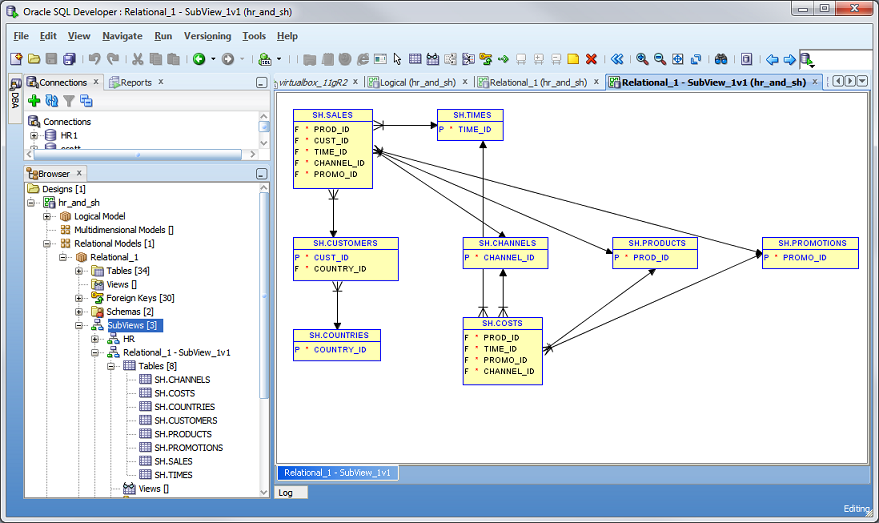
I’m going to go out on a limb and guess that most people who use SQL Developer do not realize it has a fully-baked data modeling tool built into it. It’s not like we hide it, but we kind of hide it. To open the Data Modeler inside of SQL Developer, navigate to the View menu, and activate the Data Modeler Browser, like so –

Once opened, you’ll see a new ‘Browser’ panel beneath your Connections. You can use the File – Data Modeler – Open dialog to open any of your models. Or you could create a new physical model by importing a ‘Data Dictionary.’ This is code for, ‘reverse engineer an existing Oracle database.’
Your model will then be displayed in SQL Developer.

If you’ve gone through all this and you still don’t see your model diagrams, right-mouse-click on the model in the browser tree, and select ‘Show Diagram.’ This will activate the diagram in the SQL Developer interface as a new document.
Reporting for duty!
At some point someone is going to ask your for a ‘data dictionary report.’ You might think you know what this is, or maybe you have seen one before. In my experience, it’s 100% necessary to ask and confirm with your end-user EXACTLY what they mean by a ‘data dictionary report’, because everyone seems to have their own variation of what that means.
According to Wikipedia, IBM defines a data dictionary as
A data dictionary, or metadata repository, as defined in the IBM Dictionary of Computing, is a “centralized repository of information about data such as meaning, relationships to other data, origin, usage, and format.”[1] The term may have one of several closely related meanings pertaining to databases and database management systems (DBMS):
- a document describing a database or collection of databases
- an integral component of a DBMS that is required to determine its structure
- a piece of middleware that extends or supplants the native data dictionary of a DBMS
Again, ask your requester exactly what they are expecting in their report. I’m guessing that most of the time SQL Developer will be able to deliver on most of your requirements, for free!
New for v3.1!
Version 3 has this feature, but it’s limited to XML reporting and doesn’t allow for SubView filtering. To download v3.1 and read about all the new features, please visit our OTN page.
Ok, with that disclaimer out of the way, let’s get to building our HTML report!
With your model open and active in SQL Developer, go back to the File menu, and navigate to the Data Modeler – Reports item.

You have a few options here. I enjoy working with sub models (which are known as ‘SubViews’ in SQL Developer.) When I generate a report I have the option to only include objects that are in a particular SubView. Hint: Subviews are very handy when dealing with very large models. They allow you to effectively filter your models and reports.
Once you click the ‘Generate Report’ button it will build out the HTML files.
Here’s a quick preview of what that looks like

There’s a quick look-up filter box. Type in your table name and the list will auto-filter to that text. Most folks deal with very, very large models – we’re talking many hundreds of entities and tables. Clicking on the table name auto-navigates you to the appropriate spot in the dictionary report.
If your end users also want the actual diagram component included, use the File – Data Modeler – Print Diagram interface. You can then include the image or PDF file to your HTML landing page.
I’ve uploaded my HTML report for you to go play with.
Hehehehehehe, he said ‘duty’ 🙂


53 Comments
cant render a report in PDF.
below is the error message.. Any help is greatly appreciated
2018-09-06 12:59:29,524 [Thread-84] ERROR RenderPDFReport – PDF report generation FOP message: at org.apache.xalan.templates.ElemForEach.execute(ElemForEach.java:263)
2018-09-06 12:59:29,543 [Thread-84] ERROR RenderPDFReport – PDF report generation FOP message: If the above line is something like ‘Unable to access jarfile’ that usually means that JVM parameter entered in JVM Options text box is not according to specifications.
Is there a way to generate the data dictionary through a command line?
HTML diagrams, no.
But if you use the data dictionary reports and the Data Modeler reporting repository, you have a few reports you can generate. And you can create reports from the SDCLI program.
Thanks Jeff! I’ll try this out.
Jeff,
I would dearly love it if you could rewrite this using SQL Developer 4.1! I did this a long time ago, but when I got a new workstation I (apparently) lost something. I’ve just re-read it and it is daunting.
john3
Considering you can include the diagrams now, consider your request ‘approved.’
Hi Jeff,
you blog has been invaluable in starting to work with Data Modeler. So thank you.
I’m not sure if this has been brought up. With a large data model (1500 tables), the HTML balloons up to around 30mb and the browser struggles to work it. The XSLT files have long inline styles all over the place which, repeated thousands of times, makes for a huge file.
Just some feedback through the only channel I can get to.
Thank you.
You have the open channel that is the SQL Developer Data Modeler Space/Forum on OTN – we’re working on this stuff right now actually, and I suggest you submit your use case and problem there, as the developers monitor that space closely.
hello Jeffs
I’ll start right from thanks for a great tool ! Ideal for creating documentation databases. I use it every time as I create new projects . Currently I oversee the design of which is based mostly on views. These are massive objects flattening relationships between tables to a client . Unfortunately, so far, they do not have documentation describing what present views. I would like to create such documentation in HTML for these views as well as for tables but I can not do that . Is there a way to treat Data Modeler views as tables to create a report ? Or maybe you could recommend a tool that could help me with this ?
The modeler can quite easily generate reports on Views. What exactly do you want in your report?
I really try to do this, but the report generator does not display any view you choose. I want to show the names of view the report , columns, data type and a comment column comment or RDBMS . In my projects , and I was brought back only the views of the database , so the source tables are hidden. Can you tell me what I need to do , please?
I’m still confused, do you want a report of the views – view name, column name, data type, and column comments – or do you want a list of tables that the views are based on?
I need to generate report from views describing views-columns, data type and a comment or RDBMS comment column.
Hi Jeff. Is there a way to report on Packages, procedures and functions? Check this video and see how it reports on procedure an functions. Do you if it’s possible in Data Modeler to do similar thing? https://www.youtube.com/watch?v=g2g_clAR5NY
Hi Jeff,
Using the SQL Developer 4.1 and have one question and one suggestion for Data Modeler;
1- When generating a standard model report from a Relational Model, the Classification Type is not populated, it’s not clear to me which field it’s reading it from, it doesn’t seem to be Classification Type, or Additional Classification Types of a table.
2- Using custom report template, there doesn’t seem to be a way of including diagrams in the report. Is there a work around?
Thanks
A.
you have to assign the classification types yourself, you can add custom ones if you’d like
you can include the diagrams in the PDF reports
Thanks Jeff, I have added the classification manually to each table, and they don’t show up on the report.
I would like the PDFs to be in linked in HTML reports, the same way as a standard report would do.
You have to add the classification type to your report template
looks like the standard report has a bug, it’s printing the Classification Type label, but it’s not including the value. I’ll log that.
you can fine the Diagram links in it though –
Thanks Jeff, that’s what I thought too. The Standard report does seem to have a bug with Classification Type, thanks for logging that.
The PDF diagrams do show up in the Standard Report with no problem, the questions is how to get that show up in a custom report the same way as the Standard Report.
Thanks
Is there a trick to getting the diagram link to display? It doesn’t show up in my HTML report. I would prefer to generate the report (and diagram) in PDF if that works.
Thanks
Very Helpful post,
But what you didn’t mention is that one need to set up the reporting repository. https://docs.oracle.com/cd/E57998_01/doc.41/e57984/data_modeling.htm#DMDUG36154
i didn’t mention it b/c it’s not required. it’s nice if you want to query your models from the database though.
Thanks. I see it not required too.
Thanks I will try but due to some restriction i am stuck with this version.
Thanks again though 🙂 Its really cool and informative to read information you have provided.
I was wandering whether could we generate this report in sql devloper version 2.1.64? i am not in position to upgrade!
v2.1 is so very old. Are you sure you can’t get a newer version? it’s just a download and an unzip – no admin privs required.
Is there anyway of including images of the model in the html reports. I noticed that there is a ‘Clear Diagrams’ check box on the reports window but I can’t find anything that tells me what it does. can anyone assist please?
Hi Jeff,
I’m in SQL Developer 4.0.1.14 and found this post just yesterday.
I have a Design opened. I go to file menu->Data Modeler->Reports.
I don’t see the same options as you’re showing here in v3.1.
In Available Reports I choose Tables.
Ouput Format I choose HTML.
Under Standard Templates the dropdown is empty.
Under Loaded Designs, Available Designs I choose my Design.
Available Models I choose my model.
I don’t see the option to specify a Subview.
Am I missing something?
Thanks!
This is the problem with writing stuff down – the software changes and then what you wrote is no longer 100% accurate.
You can still do it – you just need to create a report configuration. An extra step, but you do get a LOT more control on the content of the report.
Here’s a screenshot of doing this in v4.0.1
I like more control on the contents of the report. 🙂
Thanks for your time!
So I’ve used the data dictionary generation tool and posted the html output within my organization. Fantastic.
What I still haven’t figured out is an easy way to report on view definitions that contain many calculated columns. Preferably, in a format not too dis-similar to the html output from the base table html that SQL Developer already provides.
ie. I have 300+ views in the DB that join tables and I want to get meaningful dictionary data into an “expression” and “Col Name” columns.
“a.foo * b.bar” AS “Net Money”
where a and b are base tables.
I’ve seen the SQL Developer query builder expose this type of representation, but I haven’t found a way to export it…. Any suggestions?
So you want a report of all calculated fields for your views?
Yes please.
That information really isn’t stored in the database, we’ve had to parse ALL of the TEXT column in ALL_VIEWS, and THAT is a LONG type’d column.
I think to do this ‘right’ you’d need to put this information in your column comments of the view, then mine that data. But that would mean going in and documenting all 300 of your views manually.
Thanks Jeff.
I was afraid that might be the answer. I do appreciate your time. Any ideas around other tools that might help here?
So Steve, good news 🙂
I talked to the developer, there’s a way to do this. It requires a one line change to an XML file. I’ll blog that ASAP. I think your problem will be close to solved!
Cool. I shall await XML tweak details blog. Thanks.
This gives you what you need, I THINK.
Jeff,
So I’ve had a go at the steps you posted in the blog.
0. I went ahead and upgraded from 4.0.0 to 4.0.1, since the UI changed.
1. I’ve “sucked” in the Data Dictionary, but only the views (not the base tables, since it was getting angry/hung when I tried to include the base tables – approx. 50 base tables and 50 views = angry/hung)
2. I’ve saved the design. Closed SQLDeveloper. Made XML tweak. Restart SQLDeveloper.
3. Reopen the design, bring up the Find pane, go Advanced, Object type=Column View, Expression (NOT) blank/null, returns no rows 🙁 (I do see all my views when I change the criteria).
Any reason the Expression detail is a no show? I don’t think I should need to “suck” in the base tables, but perhaps there is some validation that tries to match the expression objects with the actual objects (base tables) which aren’t there (point#1)??
It sure helps to have the developer handy 🙂
Views need to be parsed (parse older style views) in order column info to be populated correctly
So, do you see a little yellow ‘warning’ sign at the corner of each of your views? Basically says, we haven’t parsed/validated the underlying query yet.
Select ALL of them in the tree, or ctrl+A in your diagram, and then right-click, ‘Parse’
Or this
This is gonna take a lot of CPU and Memory. So if you have 300, you might want to break it up into chunks.
And you probably want to give the modeler more memory anyway – that’s why it’s complaining when you want to bring in the tables I’m guessing.
And yes, we need the tables. So run the Import again, just the tables this time. It will append them to the existing design. THEN do the parse.
Jeff,
Awesome. I’m up to the reporting step, which I’ll work out in due time. FWIW, yes I did have the yellow yield sign in all of my views. I was able to do the “parse” step without the base tables and still resolve the expression content in the Find pane. (the yellow yield turned red, assume that’s signaling a parse with a failed validation, but I’m more interested in just parse at this point, since I haven’t quite worked out the tipping point of how much is too much from a “bite size” chunk perspective before I’m in a hung state).
FWIW.2, running on a dual xeon 24 logical core w 16GB, I turned up the min/max heap to 4096M in sqldeveloper.conf, but I don’t see the process size going much past 1GB in task manager:
#Increase Max Heap Size
AddVMOption -Xms4096M
AddVMOption -Xmx4096M
I would like to extend a big “THANK YOU!” for working this with me. You’ve been a big help in my effort to get a better handle on our data documentation.
Best
Steve.
Well, we changed where that setting goes. Instead of sqldeveloper.conf, you have to go into your application data directory, under your OS user – assuming you’re in Windows.
Go to Roaming Profiles, then sqldeveloper, then 1.0.0.0 directory. In there you’ll have a product.conf file – that’s where you can adjust the VMOption flags.
Jeff,
Bumped up JVM min/max to 4GB and bingo, things got much better.
This might be going into “probably asking a bit too much” territory, but here it goes…
So now busy doing actual analysis on the views (batch of 52 in this go, w/out underlying tables), to discover that SQL Developer doesn’t play too nicely at the moment with lazily written view definitions. For example, when explicit aliases aren’t defined at the start of the DDL and then a column like this turns up…:
DECODE (sm.call_put_ind, ‘P’, ‘PUT ‘
|| TRIM (sm.new_sec_symbol), ‘C’, ‘CALL ‘
|| TRIM (sm.new_sec_symbol), sm.sec_descrip_1)
|| ‘ ‘
|| TRIM (sm.sec_descrip_2)
|| ‘ ‘
|| TRIM (sm.sec_descrip_3)
|| ‘ ‘
|| TRIM (sm.sec_descrip_4)
|| ‘ ‘
|| DECODE (sm.call_put_ind, ‘P’, ‘ EXP ‘, ‘C’, ‘ EXP ‘, ”)
|| TO_CHAR (TO_DATE (sm.option_exp_date, ‘YYYYMMDD’), ‘MM/DD/YYYY’) security_description,
“security_description” is not picked up as the column name. Instead, SQLDev seems to punt and create a generic representation. In this particular case it chose “COL_292” and seemed to lose the plot a bit in terms of COL_292’s association to the view (blank columns in my report).
Perhaps I should add, that after “Parsing Older Style Views” on this particular view, I got a red warning “!” at the top of the graphical representation of the view AND the normal 2 column representation “NAME datatype” collapsed into a single column with the lower case names (“security_description” from above, inclusive) as the only column. So it is trying to tell me it’s not happy. You wouldn’t happen to have an xml tweak in your back pocket for this would you??? Something like “use_smarter_inferenced_DDL=true” ?
I should add this only affects a subset of my views. Things are going perfectly on ~45 of the 52.
Hi Jeff,
How do I eliminate unwanted columns from the data dictionary report?
From your html report, suppose if I want to remove Domain Name, Formula, Security and Abbreviation form ‘column’ report section, how do I do that?
You need to create a reporting template. From there you can define exactly what columns you want to include (and more). I write a little bit about this here.
Hi,
I’ve created personal reports in SQLDEV 3.3.2
I’d like to import then in the new version.
xslt folder is for template reports…but what is the folder for personal reports ?
Thanks
Regards
Mcgram
What type of reports?
Theoretically when you run new version and say ‘Yes’ to importing previous verion’s settings, these should be brought over.
Forget it. All templates are under /xslt. Thanks for the tutorial.
Oh great, I’m happy you were able to figure that out so I wouldn’t have to 🙂
Thanks for following along!
Where can I found an example of templates to generate the reports? Do you know?
Hi!
Jeff, today I try to do this excercise but when opened the [Report] window there are not the same options, I’m executing the 3.0.04 Version – Build MAIN-04.34, are you with another versión?, can I suggest that every post show the Sql Developer version that you using for each example?.
Thanks a lot for this blog.
So big mistake on my part, these are actually new features for release 3.1. From the release notes –
I like your idea about version disclosure, although I think I can do much better.