

Update for version 4.2 and higher.
As often happens, my ideas for blog posts are provided by end users asking for help. Sometimes I know the answer, sometimes I don’t. This is one of the latter cases. Chet AKA @oraclenerd asked me:
‘Tell me how to find the preference in sqldev to make a tab 2 spaces?’
I knew it had to be in there somewhere. This is a pretty basic setting for any word processor or IDE. Basically you want to control how many spaces are inserted when you hit the TAB key.
The default is ‘2.’
The problem with default settings is that they are likely to make half the users happy, a third non-plussed, and the rest genuinely upset. The idea is to shoot for something that offends the least number of users and aim for ‘the right thing’, kind of like Google’s ‘Do No Harm’ motto.
Since we can’t make everyone happy, we provide options for the end user to customize and fine tune their experience. The problem here was that it was REALLY hard to find this particular option. The search mechanism in the preferences dialog doesn’t reach the page where this particular setting was stored, and the label for the setting isn’t ideal.
So let’s get down to brass tacks and show you exactly how to configure this setting in SQL Developer.
Open the preferences, go to the Database page.
Easy enough. Now click on the ‘SQL Formatting’ sub page and then on ‘Oracle Formatting.’

Click on the ‘Edit’ button next to the profile dropdown control

Go to the Indentation page and inspect the ‘Spaces’ property
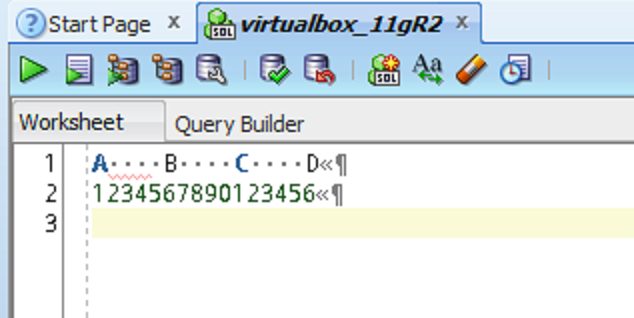
It’s currently set to ‘2.’ Change it to the desired setting. If I change it to 5, when I hit the ‘tab’ key, SQL Developer will insert 4 spaces leaving the cursor on the 5th curpos on the current line.

You can easily observe the new behavior in the worksheet if you enable the ‘Show Whitespace Characters’ option under the ‘Code Editor’ and ‘Display’ page in the preferences.

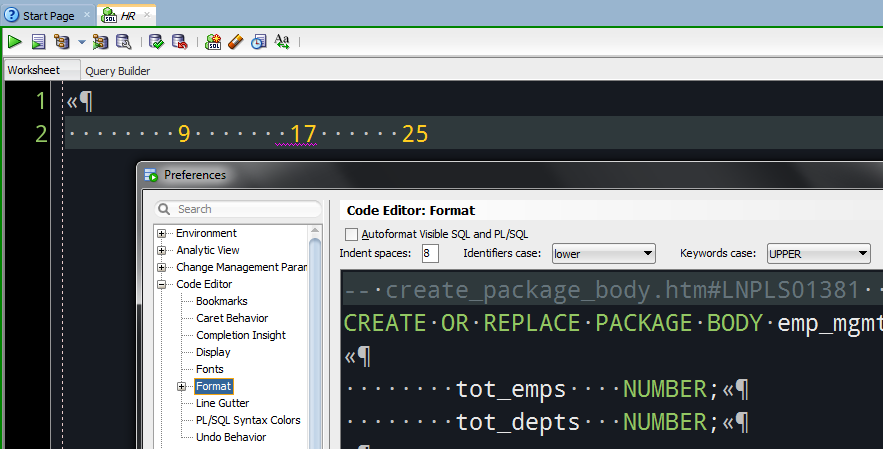
Update: Version 4.2 and Higher
Pretty much the same difference.
However, we completely changed the formatter – enough so that we couldn’t preserve your settings, including this one for the indent/tab stop. So you’ll need to reset it. And it’s in a different place now.

24 Comments
What I can’t find is a setting to tell it the tab stops to expand tab characters in the source to.
A lot of our source uses 4 character indentation steps, but tabs are taken to be 8 characters, so code that’s indented once has 4 spaces in front of it, and code which is indented twice has 1 tab, etc.
Most decent editors recognise the difference between tab size and indent size, but I can’t find where it might be in sqldeveloper.
Any clues?
I’m not familiar with that concept…is VS Code a decent editor? Because if so, you could use our SQL Developer extension there.
Fast forward to v.20 – and tab size can’t be regulated. I set indent to 2, but hitting tab always inserts 4 spaces!
ARGH!
Hi Jeff,
I want to give a quick shout out to you and the team. I love SQL Developer and really appreciate how well you treat the community (Stack Overflow posts, blog posts, etc.). I have a question/comment regarding backspace behavior:
My version of SQL Developer is 19.1.0.094, Build 094.2042.
Is it possible to force backspace to only delete a single space when “indent spaces” is set to higher than 1? I have SQL Developer adjusted such that indentation occurs as “indents with spaces” and my indentation parameter is set to 4 spaces.
By using the “indent with spaces” setting, I assumed that performing a backspace would only delete a single space. However, it deletes the same number of spaces that indentation is set to, regardless of whether the spaces were keyed using tab or keyed using space bar. I feel like this behavior would be expected if “indents with tab” were the setting.
I understand that for some users, this could be the preferred behavior–but for me, I find this hard to deal with when I’m obsessing over my SQL formatting.
Best regards,
Taylor
I have to reset this from 4 to 3 every time I upgrade, even though I copy preferences from previous version. Is this as intended, or is it a bug that this particular setting is not copied across?
Thanks
What was the latest versions you upgraded from and to?
With one exception, that should work.
Hi Jeff, thanks for the prompt reply.
Upgraded from sqldeveloper-17.4.1.054.0712-no-jre to sqldeveloper-18.1.0.095.1630-no-jre
yeah, that should carry over, if it’s not, it’s a bug. let me go ‘yell’ at someone…
A little hint there saying if you change to ZERO your “tab” key won’t work at all wouldn’t hurt =)
I hope your foot recovers soon 🙂
Ahh, okay. That makes sense. Happens to the best of us. 🙂
I notice this article is a few years old. Is this still how to set indentation settings in SQL Developer, or have they changed things around since this was written? I’ve been unable to find any more recent reliable sources. There was a forum post that said something about a Beautifier, but I wasn’t sure if that was what I was looking for.
No, I’m looking specifically for a way to set the “tab” key to insert a certain number of spaces rather than a tab character. So this is no longer the way to do that, then?
sorry EMG, I replied to the WRONG COMMENT, oops
did you read the post? i just tried setting it to ’12’ and it still seems to work that way
I did read the post, yes. Unfortunately, I am unable to check for myself to see if it still works this way; I’ve been asked to find this information for someone else.
so send them the link, let them try it. it works for me. btw, love the OC…I’d much rather be answering emails from Laguna Beach right now.
Okay, thanks for the info!
My Toad today crushed and not having time to take care of it today I switched to SQL Developer. All was fine ( especially that I worked in it some time ago ) but the code was 3 spaces tabbed so I didnt want to change it. I thought, its just a simple setting in preferences and thats it. How I was wrong. I went through many places many times in Preferences and did not find anything like Tab setting, I just couldnt believe it, it always was this simple 😉
Thanks for the tip, I would never find it by myself 🙂
If it’s been some time since you last used SQL Developer, take a second and get the latest version. And be sure to let me know if you have any other questions! Welcome back 🙂
When we want to edit Table/View from the List on the Left Hand Pane, then it pops-up a new window which allows us to edit a existing table/view, but doesnot allow us to multi-task until we close this window.
Please suggest if there is any way to avoid this? Rather change the Preferences, and which could allow us to edit existing table/view and also open a new tab in Oracle SQL Developer and perform tasks?
It’s a modal dialog, so no.
So how do you set up a Tab keystroke to be 2 spaces (instead of the actual Tab character)?
(Yes, now I’m following you)
That’s the default behavior. I don’t see Tab characters at all. Set that option to ‘2’ if you want 2 spaces when you hit