

I’ve been referring customers to SQL Developer’s Migration Workbench for a few months now. I thought it might be a good idea to give it a try myself before I send any more children out to play with the wolves.

This is NOT a formalized review. This is a quick glance at a cool tool from a cool vendor. I did what all geeks do – I ran it without reading ANY of the product documentation. And I got it to work in about 15 minutes. Not bad. Not bad at all. I also played around with Microsoft’s counterpart, the SQL Server Migration Assistant (SSMA) a few months ago. I was also successful there, but it did take a few trips to the help to figure it out and to get data successfully moved. More on that in a follow-up post.
For the test I was using SQL Developer 3.0.04.34 (64 bit) on my Windows 7 laptop. I migrated from MySQL 5.0 to Oracle 11gR2.
If you need SQL Developer to perform migrations, you can get it here.
Wizards to the Rescue!
Step One: Create A Repository
One repository will work for all of your Oracle instances, assuming you are OK with the project mingling together. Give your projects different names, and you should be good to go. Pick the database you want to build it in, then use the Wizard to build the repository.
Whatever user you use to login to the instance in the wizard is apparently where the repository gets built. Don’t supply a login for any schema you do not want these 40+ tables to be created in. You can find the complete data model here if you are morbidly curious.

Step Two: Migrate
For this example I chose to migrate a MySQL database. What happens is SQL Developer will take the ENTIRE MySQL database and move it to a new SCHEMA of the same name in the target Oracle database. It would be nice if the tool allowed you to choose the tables you wanted to migrate and whether you wanted to append to an existing SCHEMA, but I can live with this. If you can’t, then I recommend trying the ‘Copy to Oracle’ mode.
Once the Migration Repository is available, you can start the 7-step ‘Migrate’ wizard. I’m not going to post screen shots of every step, just enough to give you an idea of what’s happening.

Make sure your repository database is available, or you’re not going to make it past Step 2!
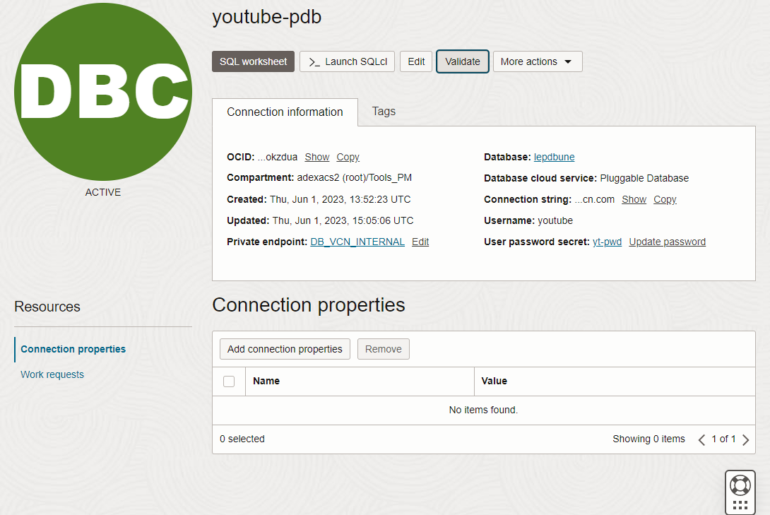
In Step 3 we are going to create a new ‘project.’ We’ll need a project name, description, and work space (output) directory.
In Step 4, we need to tell Oracle where the data is coming from.

- Ensure the JDBC drivers for connectivity are installed
- Select or Define your connection
If you don’t see the source you are looking for, try the ‘Help – Check for Updates’ engine. Be sure to install the ‘jtds driver.’ This will give you access to MySQL, SQL Server & Sybase. If you are migrating from SQL Server, be aware that the tool only supports migrations from SQL Server 2005 and older. Wouldn’t be surprised if this changes once Denali is formally released and ‘older’ 2008 installs are ripe for migrations. As it stands now, 2008 is pretty bleeding edge in a lot of SQL shops and I don’t see big demand for migrations there.
Now we get to select our database. You will notice that SQL Developer ignores the default MySQL data dictionary databases, kudos!
After we select the data to be migrated, we need to let the engine know how to treat the data type conversions that will happen. For example, will we

If you need to make any changes, you can edit the default rules to create your own ‘user’ rules
If you are tempted to jump through this wizard as quickly as possible, I strongly urge you to stop here and think a bit. It doesn’t matter how easy the tool makes it to move your data if the date is truncated or converted in such a state as to be useless. It might make sense to test your migrations on smaller datasets before attempting a very large one to save you a lot of frustration later.
The last page is basically the ‘go’ page where you can double-check everything you have set and confirm the target database.

Alright, just one more click and we are good to go! Let’s confirm what we’ve asked Oracle to move for us.
Move Tables Manually
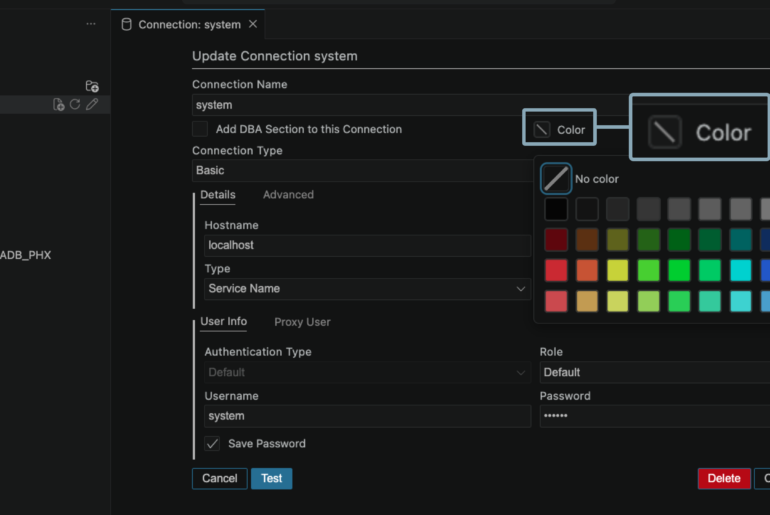
If you want to control the tables migrated and where they are sent, you can simply connect to the source database, find your table, right-click, and say ‘Copy to Oracle.’

You’ll select your Oracle database to copy the table to. You do this by choosing a SQL Developer connection. Whichever schema the connection is tied to will determine where the table is copied. This ran fairly quickly for me, say 40,000 records in about a minute.
It’s not clear if this requires the repository to be setup, but I’m going to go with ‘No.’
Managing Migration Projects
You can open the ‘Migration Projects’ panel in SQL Developer under the ‘View’ menu. It will populate assuming you are connected to the database that houses the respository. You can view your migrations here, check out logs, space information, and even check the quality of the data involved? I tried this last piece and didn’t get very far, but I think that’s due to the migration I was working on not being 100% successful.
Parting Words
This worked very well the first time I ran through the wizard. I attempted to migrate the data a second time to a separate database and ran into a problem. The capture activity seems to get ‘stuck’. I recommend if you run into a problem and need to cancel the capture, to completely exit out of SQL Developer before trying anything else. I did not do this two times, and both times SQL Developer hung when going to Step 5 in the wizard.
Even with these problems, I would have little reservation recommending the tool. It’s free. It’s pretty intuitive. I’m going to assume the problems I ran into were my fault as I skipped all of the user docs. If I find out what the issue is, I’ll update the review accordingly.
If you’re on Twitter and have questions, feel free to contact me. @krisrice and @bamcgill from Oracle are also around and are very responsive.
52 Comments
I am trying to migrate a small size MySQL database to Oracle database 11gR2 using SQL developer. After completion of migration activity SQL developer shows ” Migration actions completed successfully.”. But I found only 117 tables of MySQL database out of 450, migrated to Oracle. Any idea ?
I would start by opening your migration repo job, and go through all of the reports generated.
Hi, thanks for sharing your knowledge. I’m migrating a Sybase database to Oracle using SQL Developer and currently it’s moving the data. It has been doing that for more than 26 hours. The largest table has about 57 millions of records, then we have tables with 17, 19, 9, 7 ,4, 3 and 2 millions. is it normal that it takes too much time to finish ? . The size of the DB origin is 70GB. Thanks!
Sounds like you’re doing an online data move which is a row-by-row copy over jdbc…it could take days.
You want to do the offline data move which unloads the data from sybase into sqlloader files to be imported to Oracle – much faster! Online data moves are for trivial/test migrations only.
Hi
While migrating from MySQL to Oracle, all the tables are getting converted to Oracle but data in 80% of the tables is not moved at all. May I know what can be the possible reasons for this?
To reduce migration time , we dropped all constraints and indexes in the source database. Can this be creating the problem?
Check the logs. Also, are you doing an off or online data move?
online data move…wont offline data move be bit complex for a 500GB database with a lot of blob data ?
Offline is the only suitable production level migration, esp if BLOBs are involved.
Hi Guys
How can I get more than 1 thread/Data movers to work? also although I ask 10k rows per commit, it is doing 1-1, any tips?
Great tool by the way.
Rodrigo
Use the offline data move. SQL*Loader, for the win.
tks.
hi
how to migrate schema from oracle to mysql
Hi Team,
My source MySQL DB is of 25GB, We are getting below error on 40% of tables. I have tried SQL Developer online migration.
Failed to move data: Streaming result set com.mysql.jdbc.RowDataDynamic@568c17 is still active. No statements may be issued when any streaming result sets are open and in use on a given connection. Ensure that you have called .close() on any active streaming result sets before attempting more queries.
Please provide a solution for the below issue.
Also please provide some idea on how to do offline migration, especially which is the driver script for offline migration?
Thanks
Sreeja
Hi,
We have a 500 GB source MySQL database we intend to Migrate to oracle 12.1.0.2. We are using SQL Developer.
In the capture phase following query is performing very poorly:
SELECT DISTINCT CONSTRAINT_NAME , REFERENCED_TABLE_NAME FROM INFORMATION_SCHEMA.KEY_COLUMN_USAGE WHERE CONSTRAINT_NAME =’XYZ’;
There are 30,000 records in INFORMATION_SCHEMA.KEY_COLUMN_USAGE table and index creation on information schema tables is not allowed.
This is causing a big performance issue and capture phase goes on fpr days and errors out with timeout.
Is this a SQL Developer bug?
Is there a workaround?
try the offline capture – it runs different queries and might avoid the issue you’re running into
When user fill form in my php page and data insert into mysql table at the same time, possible in oracle database. I have make connection with JDBC and make migration and copy to oracle. But I want know CTO doing again and again or can be insert automatically at same time in both kind of Database(Mysql and Oracle). Please help me.
Who owns the PHP code? They could easily code it up to do the INSERT’s to two databases instead of one.
I have write PHP code, but there is problem both are on different server and different schema of database we fire trigger.
There’s too much going on here for me to be of assistance. You might want to look into our replication technologies to move your MySQL data/transactions into an Oracle Database.
Sir i want to both technologies, PHP for frontend for get few detail and Oracle have major database detail. So iwant User submit my form at that time both kind of database inserted.
Thanks for hepl me.
I have completed migrating the tables from MySQL to Oracle successfully. Whereas the views, procedures and functions are not found. How to migrate them? Kindly help.
Hi Jeff,
I am getting error “Copy to Oracle Task failed” while migrating MySQL to Oracle database using SQL Developer.
Below is the log —
SEVERE 139 0 oracle.dbtools.migration.workbench.core.QuickMigrateInitiator$SchemaTaskListener$1 Copy To Oracle. Task failed.
Please help.
Thanks,
Shrinath
Good day Jeff,
I’ve undergone a SQL Server to Oracle Migration via SQL Developer, it says the migration was successful however the actual tables don’t exist in the Oracle DB. I’ve emailed snips of the conversion issues noticed as well as the conversion database tables listed. Any assistance would be greatly appreciated.
Regards,
Othieno Gooding
Hi,
I have the same issue. Is there any solution for this case?
Thanks.
Ozgur
Hi Jeff,
We have done the migration from IBM DB2 to Oracle 11g using SQL Developer.
and it has worked well, But our application has separate scripts for oracle and there are few Column objects that have data type difference. and we find it difficult to identify.
Hence can u let us know whether it is possible to move only the data from the source to destination instead of the Database objects.
Thanks
Rajasekar.S
Hi Jeff,
I’m migrating SQL server DB to Oracle 11g. But getting the error, “Failed to disable constraints: Data Move”.
My understanding is that before data load the process will disable the constraints. but the “alter” statement is qualified with SQL-server DB name.
Is it mandatory to have oracle schema name as same as SQL-server DB name to avoid the error?
Is there any other alternative to by-pass this limitation?
Thanks,
Santhosh
Hi,
You’re trying an online or offline migration?
Anyways, you don’t need to have matching names for database schemas between SQL Server and Oracle. For the offline approach you can just update data move scripts in order to disable the constraints on the proper database schema.
Kind regards,
IG
I wrote that so long ago, I’m not even sure, but I probably did an online one since the amount of data was so trivial.
Thanks for the update Jeff.
means 1st we have to create the oracle database then start the migrate from SQL server.
is it not possible to take the database script from sql server and create the oracle database.
regards,
Rahul
Correct.
Hi Jeff,
Please sent me the full details screenshot for migrate the database from sql server to oracle.
while migrate can we create the new oracle database or sql developer will be create any script to create the new oracle database.
regards,
Rahul
No, we don’t create the database or the user. Once you have the database and user ready, we’ll move over the SQL Server database to that location.
Hi Jeff,
I have a question regarding the ‘Copy to Oracle’ functionality in Oracle SQL Developer. We have a MySQL database which contains our Customer Services data. For reporting purposes every week I have to copy some MySQL tables to our reporting-schema in our Oracle database. For this I use the ‘Copy to Oracle’ functionality.
This works well, however I would very much like to automate this manual procedure I have to perform each week. However, I cannot find the PL/SQL procedure underlying the ‘Copy to Oracle’ function.
My question is: Where can I find the PL/SQL procedure underlying the ‘Copy to Oracle’ function? Or, if this is not accessible, how can I automate the ‘Copy to Oracle’ function, so that I do not have to manually copy the data from MySQL to Oracle each week?
I very much hope you have some tips and advice for me. Thanks!
Kind regards,
Klaas
There is no stored procedure for that.
We do have a command line interface available for the migration stuff, but we haven’t built a mechanism to support the ‘Copy to Oracle’ bits. We can easily add it to our ‘to-do’ list though.
Hi Jeff,
Thanks for your answer. Yes, it would be great to have a ‘SQL’ tab in the ‘Copy to Oracle’ window, so that we can paste the underlying PL/SQL into a stored procedure which can be scheduled.
So to confirm, currently it is not possible to write the ‘Copy to Oracle’ function in PL/SQL right now? There is no PL/SQL code that can do the same job as the ‘Copy to Oracle’ function?
Kind regards and have a nice weekend,
Klaas
Being able to automate the “copy to Oracle” would be GREAT!!
What are you doing so frequently that you would need this? Have you looked at Golden Gate?
One time copies from ie SQL Server, or at least not so many ithin a project. We use GG and also ODI, but often the licensing and complexity of these make them irrelevant for smaller projects.
Hi jeff,
Thanks for the wonderful article.
Will u please let me know whether we can migrate mysql to oracle manually without using any tool or SQL developer.
Sure, you can do anything manually, if you want to.
But it will be a lot easier with our tool.
Why do you ask?
Hi Jeff,
My email is [email protected].
Hi Jeff,
Your Posts are too good and impressive. Please help me bye providing the steps to Migrate the database form IBM DB2 to Oracle database.
Thanks in Advance.
Regards,
Ravi Kumar Ankarapu.
Start here Ravi.
http://www.oracle.com/technetwork/products/migration/db2-084087.html
After you get your migration repository setup and your DB2 connection going, you should be ready to do a capture. Try an offline line capture so you can work on your migration w/o the db connection.
Hi,
I am in the process of migrating from ms sql server 2005 to oracle 11g. However, I am little confused here. I am new to this area of work. Migration was successful, however I am unable to verify it. Could you please help me with this?
Thanks
AKu,
Please email me, [email protected]. I think it will be easier to communicate directly then via blog comments.
Thanks,
Jeff
It is working now. It was an access issue. The other DBA did not grant certain rights for the oracle user. When I handed over the dba priv for the new user, the migration started working. Neat product. Thanks much.
Excellent! Please feel free to share any feedback with us about your migration. I take it we might need better error handling when using an Oracle connection with limited privs on the migration step?
http://www.oracle.com/technetwork/products/migration/omwb-getstarted-093461.html
Migrate the Data to Oracle
The last step in the Migration Wizard is to migrate the data to the new database. Migrating the data is a process that copies the data from the third-party database to the new tables in the Oracle database. The Migration Wizard uses the same Oracle database connection required to run the scripts as it does to move the data.
To re-enter the Migration Wizard and move the data:
1.Navigate to the Converted Database Objects node
2.Select and right click on the node
3.Select Move Data…
This once again invokes the Migration Wizard and
1.The field labeled ” Source Connection” is for the connection in the third-party database
2.The field labeled ” Target” is the privileged users in oracle required to move the data to the newly created user.
3.Click OK.
Once complete, your data should now be in your newly created database schema.
This is where it dows not get converted.
If you connect to the target Oracle connection, what do you see in the schema? Any objects created?
In the migration project panel, do you see any Capture Issues? What is the conversion status? How about the Target Status and Issues panels?
Supporting a migration via blog comments might be less than ideal. I’ll continue to try to help, but you’ll get better support on the OTN Forum for SQL Developer.
That does not work. I created repsoitory (meta data owner called ‘MIG_USER’) and another user account called ‘NA_USER’ (to hold the converted physical data objects). After capturing the data, then I try hit convert using the right click. Then the wizrad shows up, then I point move the data to the final destination. It says it is converted, but the schema is not loaded at all. I thought the respository owner may have the converted objects, that is not true even. I am not what exactly is going on.
I have done everything. It converted mySQL data to Oracle data owned by the repository user. How can I convert the meta data into Oracle physical data owned by a new user which is same as the ‘MYSQL’ user schema name? Thanks
You should be able to right-click on your migration project in the migrations panel and finish the task by migrating the captured objects to the Oracle instance/schema of your choice.